iKarao KaraFun Not Working? How to Troubleshoot It
If KaraFun is not working on your iKarao karaoke machine, first determine what is actually failing.
Looking for the current iKarao smart karaoke machine with a built-in lyrics display and two wireless microphones? Check the latest listing here.
A KaraFun app that will not open is different from an account that will not log in. An account that works but only gives limited access is different again from an iKarao six-month KaraFun VIP offer that never activated.
Table of Contents
The quickest way to diagnose the problem is to separate it into four possibilities:
- KaraFun will not open or load
- KaraFun opens but cannot connect
- KaraFun works, but your account does not have full access
- The iKarao six-month VIP offer did not activate
Do not create several new KaraFun accounts or reset the entire karaoke machine before identifying which of these problems you actually have.
Research note: This guide is based on current iKarao and KaraFun support documentation. iKarao currently publishes more than one KaraFun activation workflow, and software requirements can change. Check current manufacturer instructions if they differ from the steps shown here.
iKarao KaraFun Quick Troubleshooting
Try these steps in order:
- Confirm the iKarao is connected to Wi-Fi.
- Open another online app to confirm internet access.
- Close and reopen KaraFun.
- Restart the iKarao.
- Check whether KaraFun needs an update.
- Check the iKarao system version.
- Confirm you are logged into the intended KaraFun account.
- Check whether that account has VIP/subscription access.
- If the six-month offer is missing, check current eligibility and activation requirements.
- If your iKarao requires a software upgrade, use current iKarao support instructions before creating additional accounts.
The most important rule is:
Do not assume every KaraFun problem is a Wi-Fi problem.
First Check: Is KaraFun the Only App Not Working?
Before troubleshooting your KaraFun account, check whether another internet-dependent app works on the iKarao.
For example, open another supported online service.
If Other Online Apps Also Fail
The problem may be broader than KaraFun.
Check:
- Wi-Fi connection;
- internet access;
- router connectivity;
- iKarao network settings.
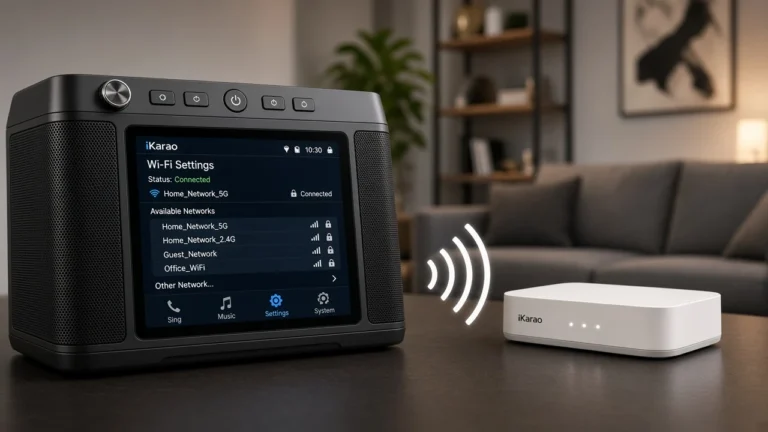
In that situation, use your iKarao Wi-Fi troubleshooting process before spending time changing KaraFun credentials.
If Other Apps Work Normally
That tells you something important:
the iKarao probably has internet access.
Now focus on:
- the KaraFun app;
- login;
- account status;
- app version;
- iKarao software version;
- VIP activation.
This simple test can prevent a lot of unnecessary router troubleshooting.
KaraFun Will Not Open on iKarao
If you select KaraFun but the app will not launch normally, start with the application and system rather than the subscription.
Try:
- confirm the iKarao touchscreen is otherwise responsive;
- close KaraFun if possible;
- reopen it;
- restart the iKarao;
- confirm Wi-Fi is working;
- check for KaraFun updates;
- check for iKarao system updates.
If every other online function works but KaraFun alone refuses to open, treat the issue as app-specific rather than a general internet failure.
Avoid uninstalling the preinstalled app as your first troubleshooting step.
The iKarao is a manufacturer-managed system, so its own support process should take priority over generic Android instructions.
KaraFun Opens but Will Not Connect
A KaraFun app can open while still failing to reach its online services.
Start by confirming that the iKarao actually has internet access.
A useful sequence is:
- check the Wi-Fi connection;
- open another online app;
- return to KaraFun;
- close and reopen KaraFun;
- restart the iKarao;
- check for app and system updates;
- try again.
If another online app also fails, the problem likely belongs in the Wi-Fi troubleshooting path.
If another app works normally, the problem is more likely to involve KaraFun itself, the account, or the current software environment.
KaraFun Login Is Not Working
If KaraFun opens but will not accept your login, do not immediately create a new account.
Check:
- email or username;
- password;
- capitalization;
- whether the correct account is being used;
- whether password recovery is needed.
If you already have a KaraFun account, use the normal account-recovery process before creating another one.
This is especially important on an iKarao because the six-month promotional offer may have account-eligibility requirements.
Creating several accounts while troubleshooting can make it harder to determine which account is associated with the machine or promotion.
KaraFun Only Plays Short Previews
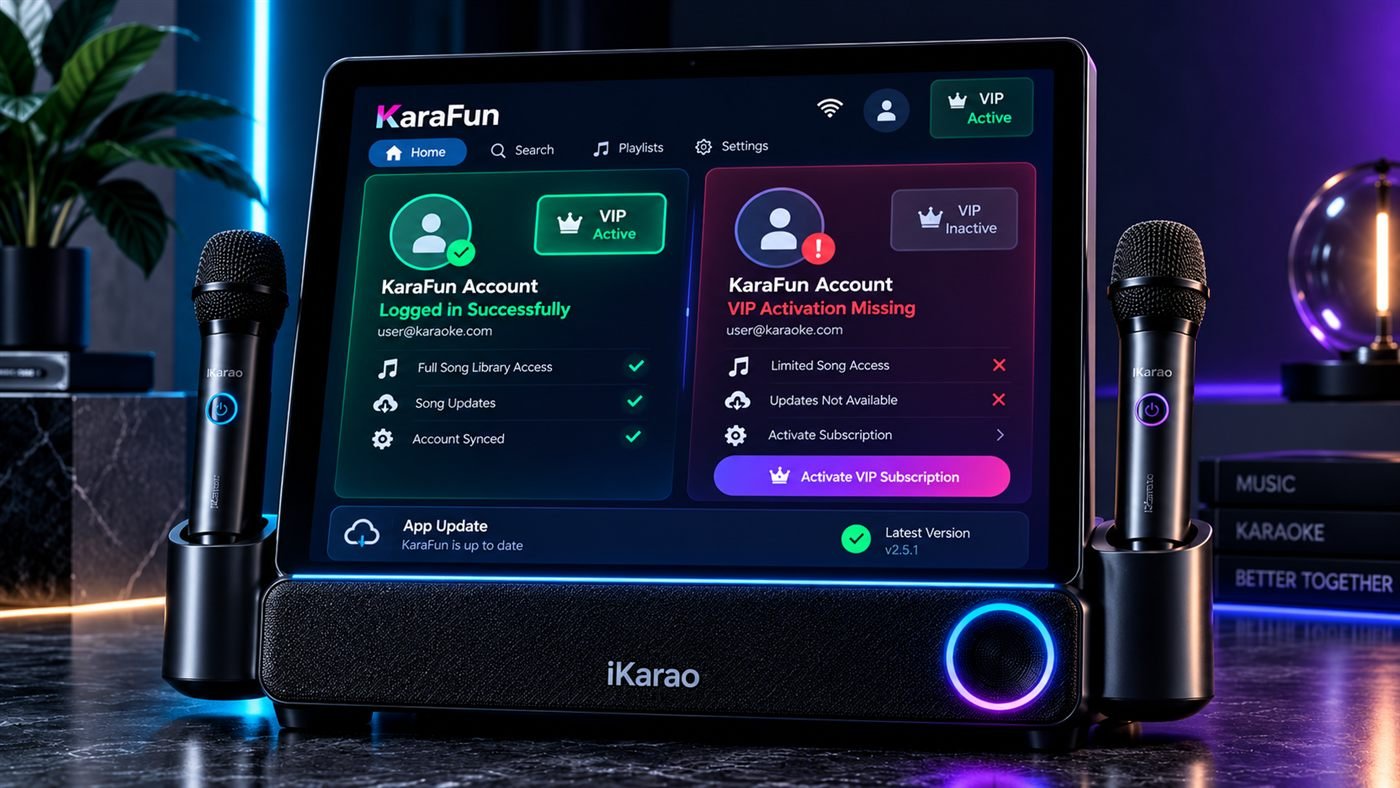
If KaraFun opens but only gives limited previews, the app itself may be working correctly.
The more likely areas to check are:
- whether you are logged in;
- whether you are using the correct account;
- whether the account has active VIP/subscription access;
- whether the iKarao promotion actually activated.
This distinction matters.
Limited access is not the same as an app failing to load.
Start by confirming the account currently shown inside KaraFun.
Then check its subscription or VIP status.
If you expected the iKarao six-month offer to provide full access but the account remains limited, continue with the activation checks below.
iKarao Six-Month KaraFun VIP Not Activating
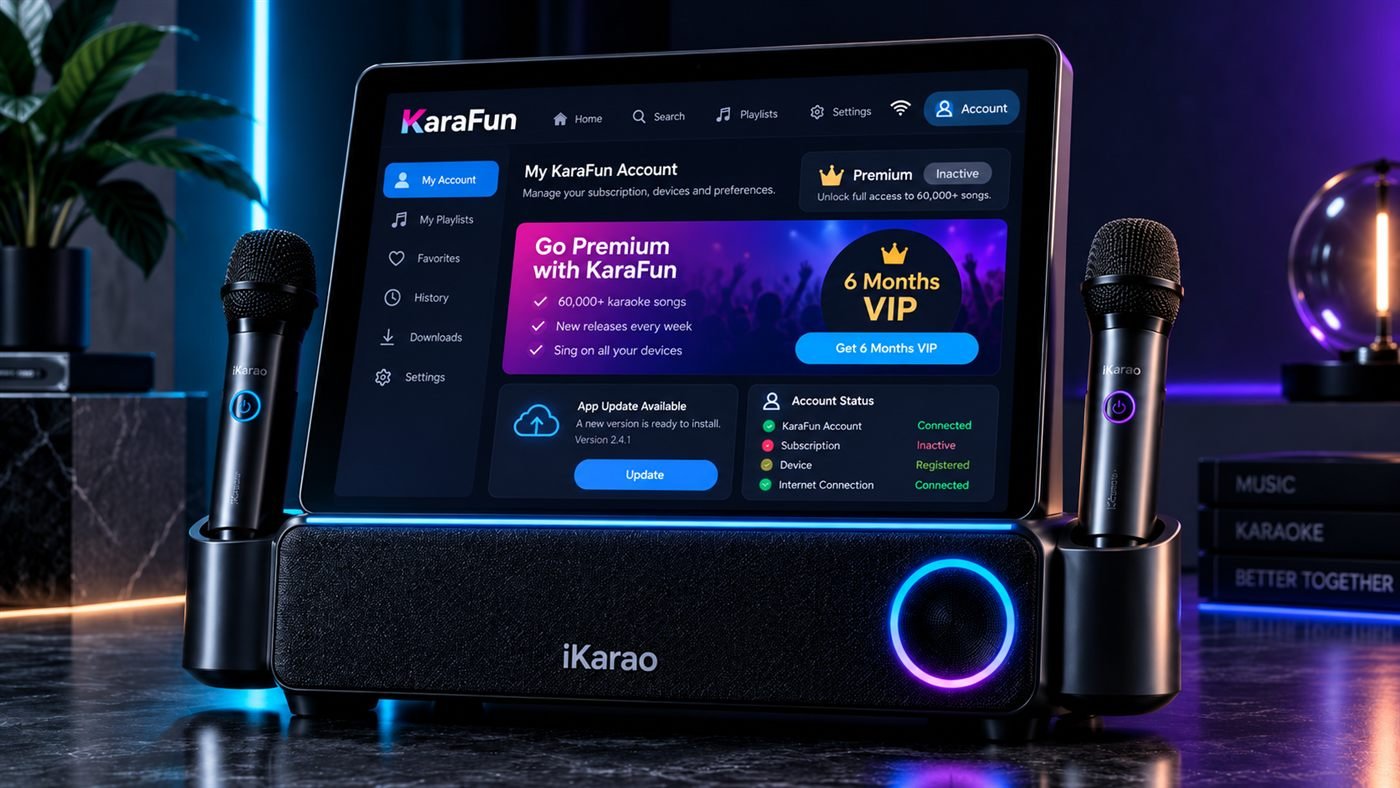
This is one of the most confusing iKarao KaraFun problems because the manufacturer currently publishes more than one activation workflow.
The newer iKarao instructions say eligible users should generally:
- make sure KaraFun is updated;
- open KaraFun on the iKarao;
- register an eligible new account;
- allow VIP access to activate through the device.
However, iKarao’s FAQ also documents a more support-assisted process for machines that need a software upgrade before activation.
That means there is no single troubleshooting step that can safely be applied to every device without checking its software state first.
Possible reasons the six-month offer is missing include:
- KaraFun app is outdated;
- iKarao system software is outdated;
- the account does not meet current promotion eligibility;
- registration happened before a required software update;
- a different KaraFun account is logged in;
- the machine needs manufacturer-assisted updating;
- the activation workflow has changed since an older tutorial was published.
The safest path is:
Wi-Fi → app version → iKarao system version → account eligibility → current activation process
Do You Need a New KaraFun Account?
Current iKarao support describes the six-month VIP promotion as being associated with newly registered KaraFun accounts.
That does not mean you should keep creating new accounts until one works.
Before registration, check that:
- your iKarao system is current;
- KaraFun is current;
- the machine meets the current activation requirements.
This matters because iKarao’s FAQ has also warned some users not to register until a required software update has been completed.
So the better rule is:
Check the iKarao and KaraFun versions before creating an additional KaraFun account.
If you already registered and the promotion did not appear, do not automatically create another account. Continue through the version and eligibility checks first.
Check the iKarao Software Version
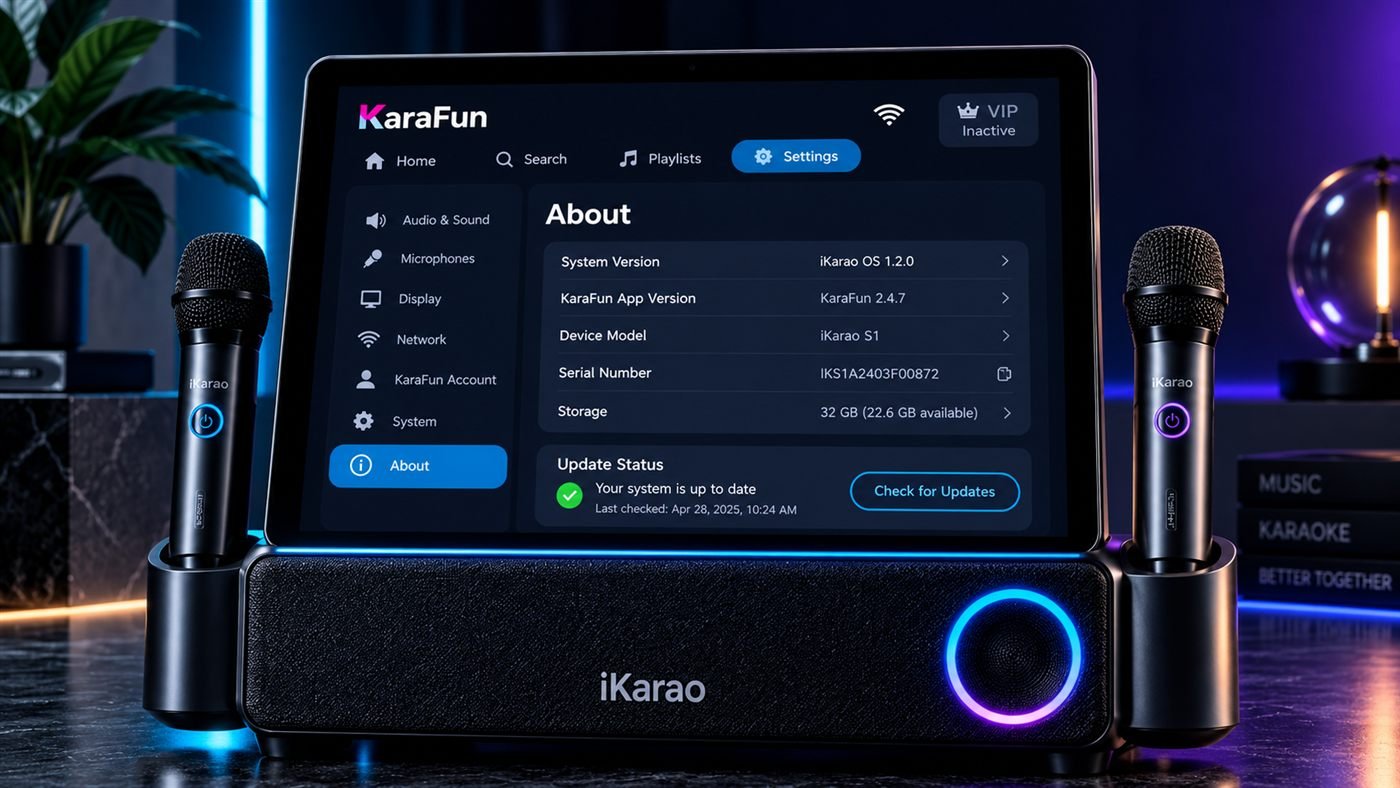
If the six-month offer is not activating, the iKarao software version is one of the most important things to inspect.
Current support instructions use:
Settings → About
to identify software/device information when diagnosing KaraFun activation.
Open that section and note the version information shown.
You may need it if:
- the machine is running older software;
- KaraFun asks for an update;
- iKarao support needs to determine whether a manual upgrade is required.
If support asks for a screenshot of the About page, make sure the relevant device/version information is visible.
Do not install unofficial firmware in an attempt to bypass the update process.
Current KaraFun Version Requirements
iKarao currently publishes model-dependent minimum app versions for KaraFun activation.
These requirements are time-sensitive, so treat the following as a dated reference rather than permanent specifications.
Requirements checked October 2026
For Break X1 and Break X2, iKarao currently distinguishes some devices by serial-number variant:
- serial number containing lowercase a: app version 1.2.6 or later
- serial number containing lowercase b or d: app version 0.6.0 or later
For:
the current FAQ lists:
app version 0.6.0 or later
These numbers can change as iKarao updates its software and activation process.
If your current manufacturer support page shows different requirements, use the newer information.
KaraFun Is Out of Date
If the app version is below the current requirement, update KaraFun before spending time on account troubleshooting.
Use this sequence:
- confirm the iKarao has internet access;
- check KaraFun for an update;
- install the current update using the supported process;
- restart KaraFun;
- check the version again;
- retry login or activation.
The newer iKarao activation instructions specifically emphasize having KaraFun current before registering for the promotional access.
Avoid downloading unofficial APK files or installers from third-party websites.
iKarao System Is Too Old for KaraFun Activation
Sometimes the problem is not the KaraFun app itself.
iKarao’s support documentation says some machines may require an iKarao system upgrade before the VIP promotion can be redeemed correctly.
If your system appears to be below the required software level:
- open Settings → About;
- record the version information;
- check current iKarao support instructions;
- contact iKarao if a manual upgrade is required;
- complete the update before attempting further activation if instructed.
Do not repeatedly create new KaraFun accounts while waiting for a system update.
Software eligibility should be resolved first.
What If You Registered Before Updating?
This is where older and newer activation instructions can create confusion.
If you created a KaraFun account before the required iKarao software update and the six-month offer did not activate, do not assume another account will fix it.
Instead:
- confirm the current iKarao software version;
- confirm the KaraFun version;
- keep a record of the account you already created;
- contact iKarao support;
- ask which current activation process applies to your machine.
Do not claim that an already-created account can definitely be reset, requalified, or transferred unless support confirms it.
VIP Activated on the Wrong KaraFun Account
If you have more than one KaraFun account, first confirm which one is currently logged in.
Check:
- email/username;
- account details;
- subscription/VIP status.
If the promotional access appears on a different account from the one you intended to use, avoid creating further accounts.
Use iKarao or KaraFun support depending on whether the problem is:
- the iKarao promotional entitlement;
- or the KaraFun account itself.
Do not assume promotional access can be transferred between accounts.
KaraFun Subscription Shows Inactive
If you believe the correct account should have full access but KaraFun shows no active subscription:
- verify the account email;
- verify that you are logged in;
- check the subscription/VIP status;
- restart KaraFun;
- log out and back in if appropriate;
- check whether the six-month promotion actually activated.
If you already have a paid KaraFun subscription but it is not recognized, the issue may belong with KaraFun account support rather than iKarao promotional support.
Do Not Reinstall KaraFun as the First Fix
Reinstalling is often suggested in generic app troubleshooting, but it should not be your first action on an iKarao.
First check:
internet → app restart → account → version → iKarao software → promotion eligibility
The iKarao is not simply an ordinary phone running KaraFun. It is a manufacturer-managed karaoke system with its own software and promotion requirements.
Only remove or reinstall system software when current iKarao instructions explicitly recommend doing so.
Does KaraFun Need Wi-Fi?
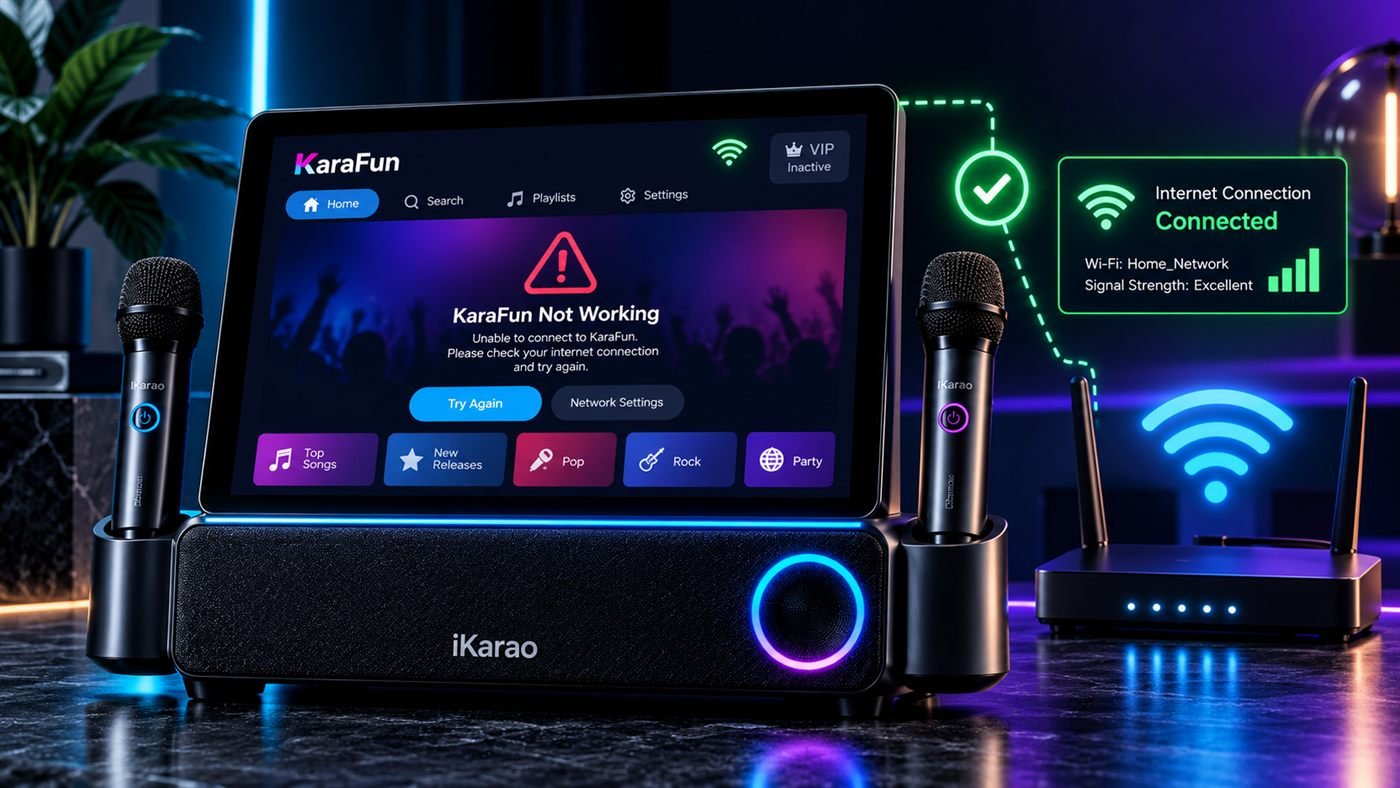
Internet access is needed for account login and online KaraFun functions.
If KaraFun cannot connect, test whether the iKarao itself has working internet access.
A useful test is:
- open KaraFun;
- then open another online app.
If both fail, troubleshoot the Wi-Fi connection.
If the second app works, focus on KaraFun instead.
Also remember that KaraFun internet access and the iKarao wireless microphones are separate systems.
A KaraFun connection problem does not automatically mean the microphones should stop working.
Is This a KaraFun Problem or an iKarao Problem?
Use the symptom to decide where to start.
| Symptom | Check First |
|---|---|
| All online apps fail | Wi-Fi/internet |
| KaraFun alone will not open | KaraFun app/system software |
| KaraFun cannot log in | KaraFun account credentials |
| Only short previews are available | Account/subscription status |
| KaraFun works but six-month VIP is missing | iKarao promotion eligibility |
| Device is below required version | iKarao system update |
| Same account fails on other devices | KaraFun account/service |
| Account works elsewhere but not on iKarao | iKarao app/system environment |
These are starting points, not definitive diagnoses.
Break X1 and Break X2 KaraFun Problems
Break X1 and Break X2 are currently sold with an iKarao KaraFun promotional offer.
For Break-series activation problems, pay particular attention to:
- KaraFun app version;
- iKarao system version;
- serial-number-specific requirements;
- Settings → About;
- current new-account eligibility;
- whether the machine requires a manufacturer-assisted update.
Do not assume X1 and X2 always run the same software revision simply because they belong to the same family.
If your Break-series machine is below the current requirement, complete the update process before repeatedly attempting registration.
Shell S1, Shell S2 and Shell S3 KaraFun Problems
The current iKarao FAQ groups Shell S1, Shell S2 and Shell S3 together under the same published minimum KaraFun app-version requirement.
That does not mean every other aspect of their software is identical.
For Shell-series troubleshooting:
- verify internet access;
- check KaraFun version;
- check Settings → About;
- confirm account eligibility;
- follow the current activation process.
Keep this troubleshooting centralized rather than assuming each Shell model requires a completely separate KaraFun procedure.
iKarao KaraFun Troubleshooting Decision Tree
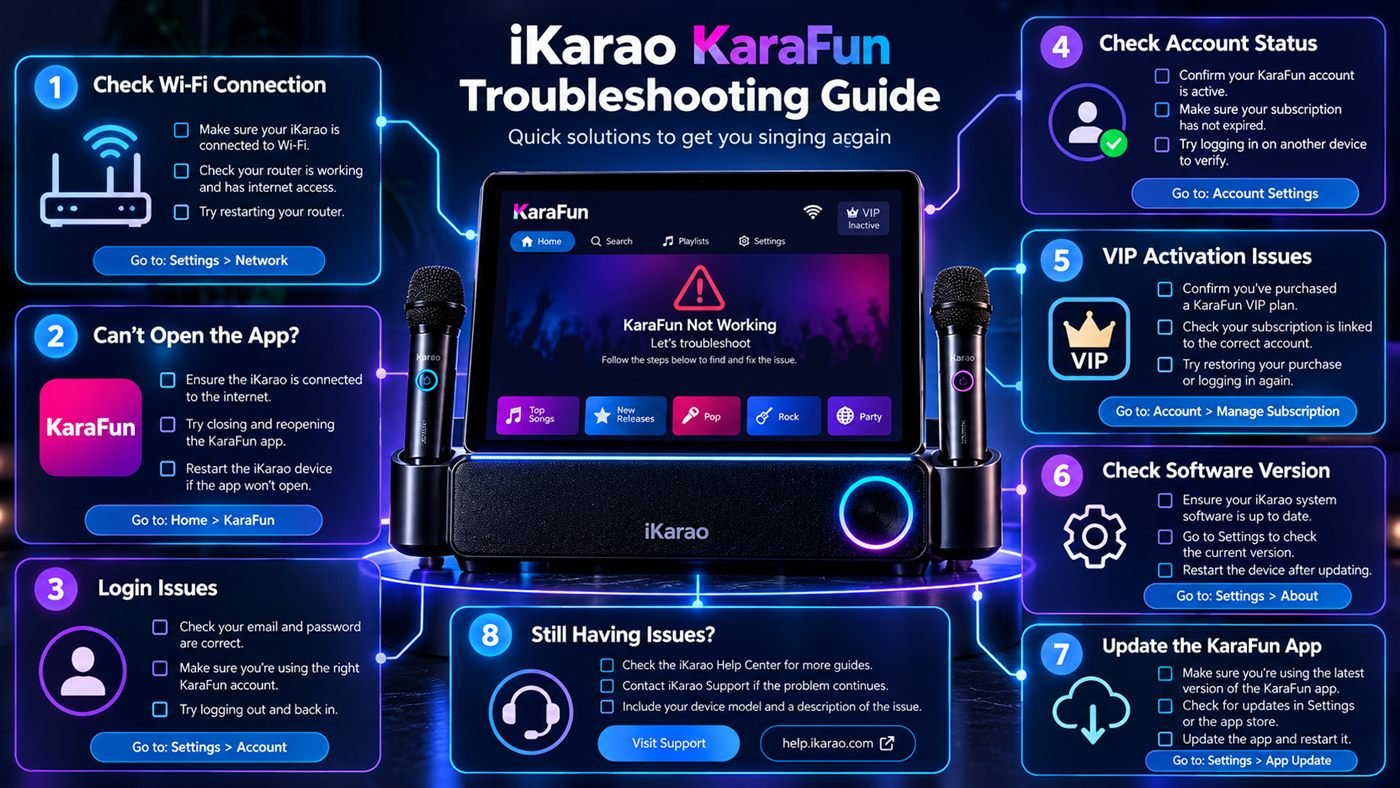
Use this sequence to identify the problem quickly:
KaraFun not working │ ├── Does another online app work? │ │ │ ├── NO │ │ → Troubleshoot iKarao Wi-Fi/internet │ │ │ └── YES │ ├── Does KaraFun open? │ │ │ ├── NO │ │ → Restart KaraFun │ │ → Restart iKarao │ │ → Check app/system updates │ │ │ └── YES │ ├── Can you log in? │ │ │ ├── NO │ │ → Verify account credentials │ │ → Use password recovery if needed │ │ │ └── YES │ ├── Do you have full access? │ │ │ ├── NO/previews only │ │ → Check correct account │ │ → Check VIP/subscription status │ │ │ └── YES │ ├── Is the six-month VIP missing? │ │ │ └── YES │ → Check KaraFun version │ → Check iKarao system version │ → Check account eligibility │ ├── Is the system below current requirements? │ │ │ └── YES │ → Settings → About │ → Follow current iKarao update instructions │ └── Still unresolved? → iKarao support for device/promotion issues → KaraFun support for account/subscription issuesQuick Troubleshooting Table
| Problem | Check First | Check Next |
|---|---|---|
| KaraFun will not open | Restart app | App/system update |
| KaraFun cannot connect | Wi-Fi | Test another online app |
| Login fails | Account credentials | Password recovery |
| Only previews appear | Login status | Subscription/VIP |
| Six-month VIP missing | App/system version | Account eligibility |
| Registered before update | Device version | iKarao support |
| Subscription not recognized | Correct account | Log out/in |
| KaraFun works but promotion missing | iKarao activation | Manufacturer support |
| Every online app fails | Wi-Fi/internet | Wi-Fi troubleshooting |
| Software below requirement | Settings → About | iKarao update process |
Check current price for the iKarao smart karaoke machine.
When to Contact iKarao Support
Contact iKarao first when the issue involves:
- six-month promotional activation;
- iKarao system version;
- manual iKarao software upgrade;
- manufacturer promotion eligibility;
- device-specific KaraFun setup;
- registration problems caused by an outdated iKarao system.
When contacting support, it can help to have:
- your iKarao model;
- serial information if requested;
- Settings → About information;
- KaraFun version;
- account email used during activation;
- a clear description of what happens when you try to activate VIP.
Do not send passwords.
When to Contact KaraFun Support
KaraFun support is the more appropriate route when the problem concerns:
- forgotten KaraFun password;
- account login;
- paid subscription status;
- KaraFun account access;
- general KaraFun service problems not tied specifically to the iKarao promotional offer.
This distinction can save time.
Think of it as:
iKarao device/promotion problem → iKarao
KaraFun account/subscription problem → KaraFun
What Not to Do First
Avoid these common troubleshooting mistakes:
- creating several new KaraFun accounts;
- factory-resetting the iKarao immediately;
- assuming every failure is Wi-Fi related;
- uninstalling the preinstalled KaraFun app without manufacturer guidance;
- installing third-party APK files;
- using an old activation tutorial without checking current requirements;
- assuming an existing account automatically qualifies for the six-month offer;
- assuming the current app-version requirement will remain permanent.
Start with the symptom and work outward.
Frequently Asked Questions
First test another online app. If every online service fails, troubleshoot Wi-Fi. If only KaraFun fails, check the app, login, KaraFun version, iKarao software version and account status.
Possible causes include outdated KaraFun software, outdated iKarao software, account eligibility, registering before a required update, or using a different account from the one intended for the promotion.
Current iKarao instructions describe the six-month promotion as being intended for newly registered KaraFun accounts. Check current software and eligibility requirements before creating another account.
Not necessarily. iKarao’s FAQ warns that some machines should be updated before registration. Check the current software requirements first.
Open Settings → About and review the system/device information shown there.
Check whether you are logged into the correct account and whether that account currently has VIP or subscription access.
Internet access is required for login and online KaraFun functions. If KaraFun cannot connect, test another online app to determine whether the problem is KaraFun or the iKarao’s internet connection.
Do not assume an existing account qualifies. Current iKarao promotion information describes new-account eligibility, so check the current terms before registration.
Do not create several replacement accounts. Record your current system and KaraFun versions and contact iKarao support for the correct activation path.
Not as the first troubleshooting step. Check internet access, account status, app version and iKarao software first.
For the iKarao six-month promotional entitlement or device software, contact iKarao. For general KaraFun account or subscription issues, contact KaraFun.
Final Troubleshooting Checklist
When KaraFun is not working on an iKarao, diagnose it in this order:
internet connection → KaraFun opens → login works → correct account → subscription/VIP status → KaraFun version → iKarao system version → promotional eligibility → current activation process → support
The most important distinction is between KaraFun not functioning at all and KaraFun working normally while the iKarao six-month VIP offer is missing.
If another online app also fails, troubleshoot Wi-Fi.
If KaraFun opens but login fails, troubleshoot the KaraFun account.
If the account works but only limited access is available, check VIP or subscription status.
If everything works except the six-month promotional access, focus on the app version, iKarao system version, account eligibility, and current iKarao activation instructions.
Because iKarao currently publishes more than one activation workflow, check the current software requirements before creating additional KaraFun accounts or following an older tutorial.