iKarao Microphone Not Working? How to Troubleshoot It
If your iKarao microphone is not working, start by finding out whether the problem affects one microphone or both microphones.
Looking for the current iKarao smart karaoke machine with a built-in lyrics display and two wireless microphones? Check the latest listing here.
Table of Contents
That distinction can save a lot of unnecessary troubleshooting.
If one microphone works normally while the other produces no sound, the problem is more likely to involve that individual microphone, its charge, charging connection, or wireless synchronization.
If both microphones stop working, check shared settings, microphone levels, and the main iKarao unit before assuming both microphones failed at the same time.
iKarao’s current support material confirms that its wireless microphones use built-in rechargeable batteries and recharge through their storage slots. The company’s user-guide hub also includes dedicated instructions for microphone setup, wireless syncing, charging, DSP effects, and volume management.
Research note: Smart Karaoke Machine has not physically tested every iKarao microphone fault described here. This guide is based on current iKarao support documentation and product information. Exact synchronization controls can vary by model or hardware revision.
iKarao Microphone Quick Fix
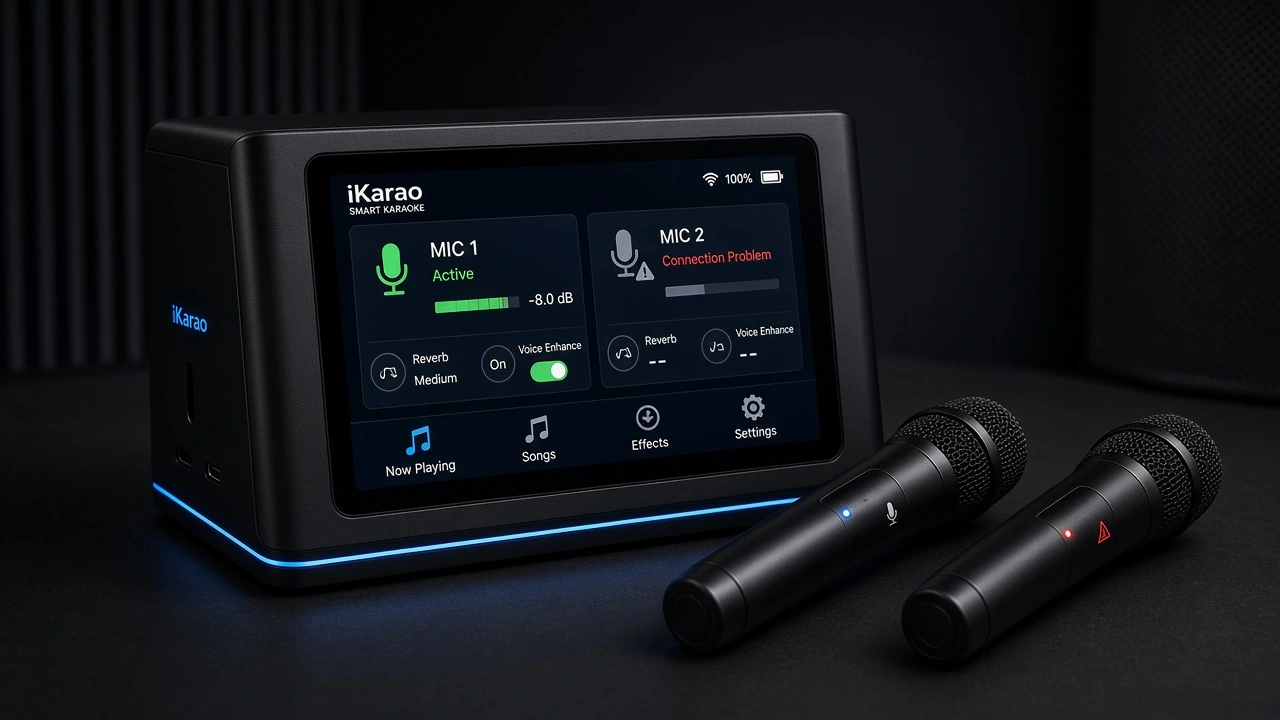
Try these checks in order before changing advanced settings:
- Determine whether one microphone or both are affected.
- Check that the affected microphone has charge.
- Make sure the microphone is switched on.
- Check the microphone level on the main unit.
- Return the microphone to its charging slot and look for the charging indicator.
- Turn the affected microphone off and back on.
- Restart the iKarao main unit.
- If the microphone still will not connect, follow the wireless-sync instructions for your exact model.
- If one mic continues to work while the other consistently fails, investigate the affected microphone or a compatible replacement.
Do not start with a factory reset. Charge, level, docking, power, and synchronization are simpler possibilities to eliminate first.
First Check: Is One Microphone Not Working or Both?
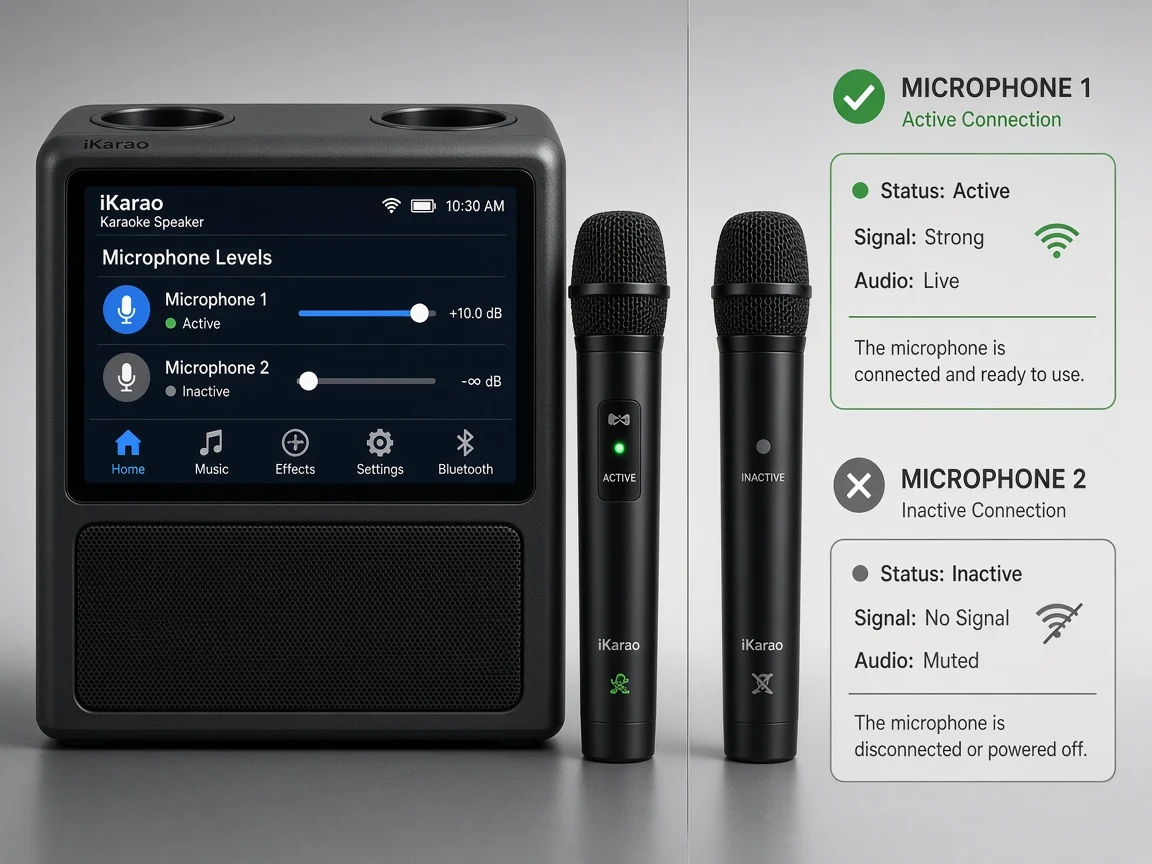
This should be the first diagnostic question.
If Only One iKarao Microphone Is Not Working
Suppose microphone 1 works normally but microphone 2 does not.
That already tells you several useful things:
- the main speaker is operating;
- microphone output is enabled at some level;
- at least one wireless microphone connection is functioning.
Start with the microphone that is failing.
Check its battery, charging position, power state, individual level, and synchronization.
You usually do not need to change every system-wide setting when the other microphone is already working.
If Both iKarao Microphones Are Not Working
When neither microphone produces sound, check shared causes first.
That includes:
- microphone level on the main unit;
- whether both microphones are powered;
- whether the main unit needs restarting;
- whether wireless synchronization has been lost;
- whether a system setting is affecting microphone output.
Two microphones failing together does not automatically mean two separate microphone hardware failures.
Step 1: Check the Microphone Battery
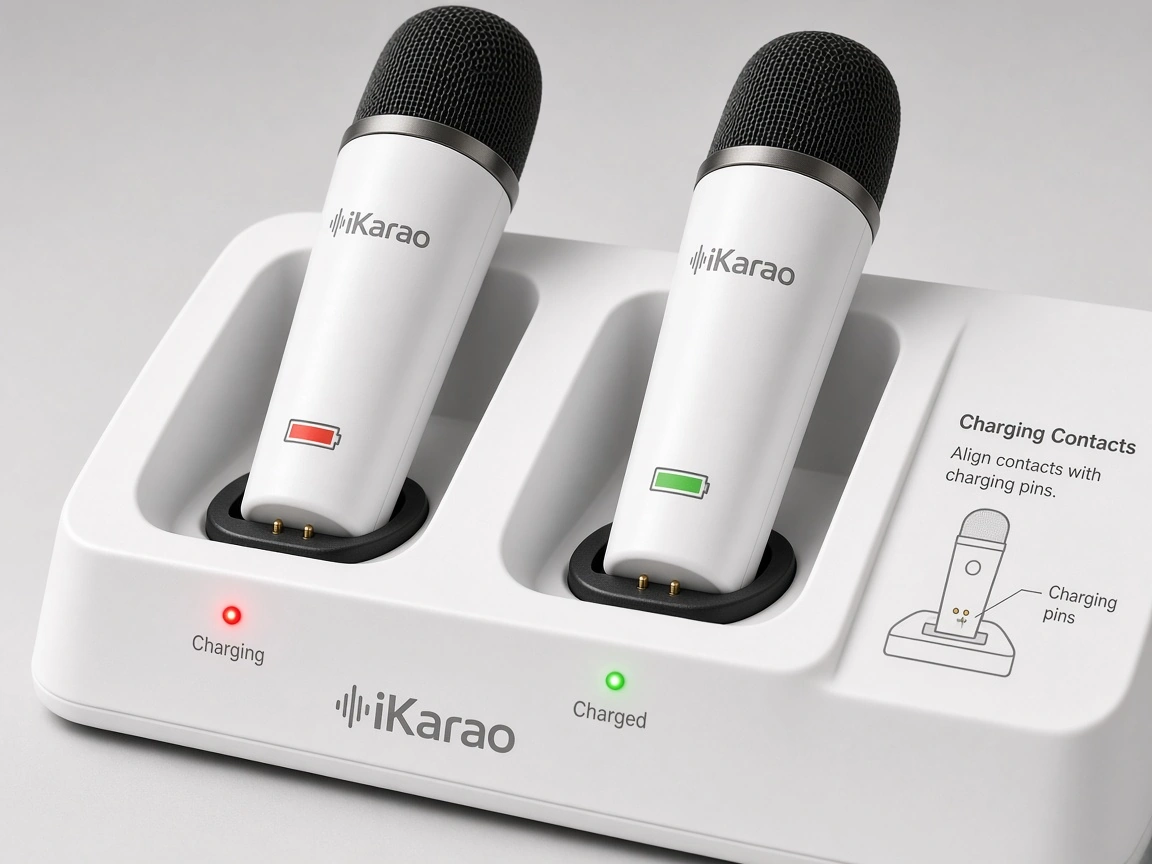
iKarao says its microphones contain built-in rechargeable batteries. On compatible systems, placing a microphone back into its storage slot also charges it.
If a microphone stops working:
- Return it to its charging slot.
- Make sure it is seated correctly.
- Look for the charging indicator.
- Allow it to charge if necessary.
- Remove it and test it again.
A microphone with no usable charge may look like a connection problem even though wireless synchronization is not the underlying issue.
Battery runtime also varies by model.
For example, iKarao’s current comparison data lists up to 30 hours for Break X1 and Break X2 microphones and 20 hours for Shell S1, while some other models do not have an equivalent microphone-runtime figure in the comparison table.
Do not apply one model’s battery specification to every iKarao microphone.
What Does the Red Light on an iKarao Microphone Mean?
According to iKarao’s current FAQ:
Red light on = microphone is charging
Red light off = microphone is fully charged.
This is useful for separating a charging problem from other faults.
If the expected red charging indicator does not appear, try reseating the microphone.
Also check whether the main karaoke machine itself has sufficient power.
If you have two microphones, compare them. If one shows the expected charging behavior and the other never does, that difference is useful diagnostic evidence.
A Charging Light Does Not Mean the Mic Is Connected
A common mistake is treating the charging indicator as proof that the microphone is wirelessly connected.
It is not.
The red indicator confirms the charging state, not successful microphone synchronization.
A microphone can charge correctly and still require further troubleshooting before it produces sound.
Step 2: Make Sure the Microphone Is Turned On
After charging, remove the microphone from its slot and switch it on.
Then test it again.
Avoid assuming that every iKarao microphone uses exactly the same button timing.
Unless the manual for your exact microphone says otherwise, do not rely on generic instructions such as:
“Hold the power button for exactly three seconds.”
Hardware controls can differ between model families or revisions.
The important check is simply whether the microphone shows normal power behavior and can then produce output.
Step 3: Check the Microphone Volume
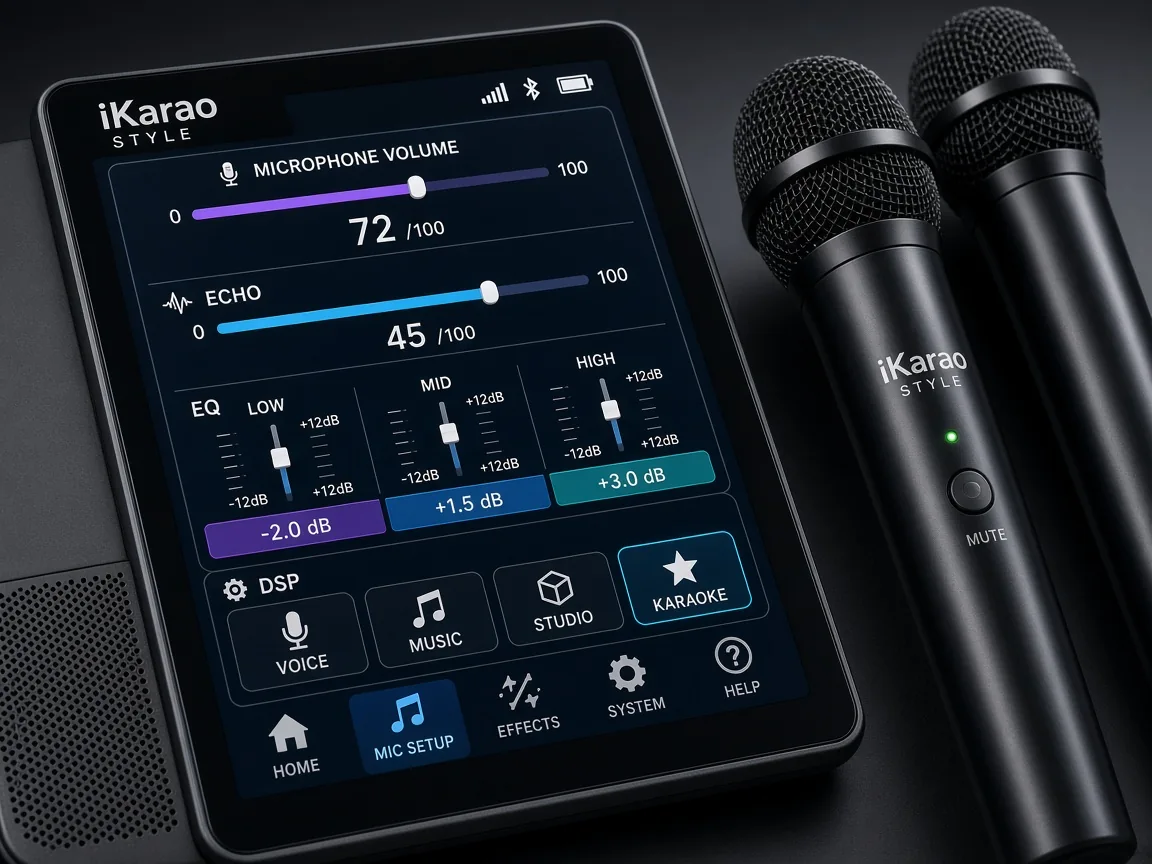
A microphone can be powered and connected but still appear not to work if its level is too low.
iKarao’s official user guide includes both microphone DSP controls and master/contextual volume management.
Check:
- microphone level;
- relevant microphone controls;
- master output level;
- any mute state;
- DSP settings if applicable.
If one microphone works and the other does not, use the working microphone as your reference.
Avoid immediately turning every control to maximum.
Excessive microphone level can create feedback and make troubleshooting harder.
Increase levels gradually instead.
Step 4: Reseat the Microphone in Its Charging Slot
iKarao describes its microphone slots as both storage and automatic charging locations.
If a microphone is not behaving normally:
- Remove it from the slot.
- Check that the slot is free of obvious obstruction.
- Put the microphone back into the correct position.
- Confirm the red charging indicator appears.
- Compare its behavior with the second microphone.
Do not bend contacts, open the microphone, or attempt electrical modifications.
If the microphone repeatedly fails to charge even when correctly positioned, that is a reason to move toward support or replacement rather than improvised hardware repair.
Step 5: Restart the Microphone
Before attempting more complicated synchronization steps, restart the affected microphone.
Turn it off, wait briefly, then turn it back on.
If only one microphone has a problem, restart that microphone first.
If both microphones are affected, restart both and then test again.
A simple restart is preferable to changing multiple wireless settings at once.
Step 6: Restart the iKarao Karaoke Machine
If the microphone has charge and the level looks correct but there is still no sound, restart the main unit.
For troubleshooting, return the system to its simplest configuration:
iKarao main unit + built-in touchscreen + included wireless microphones
Temporarily disconnect unnecessary external devices.
Then:
- turn off the karaoke machine;
- restart it;
- switch the microphones back on;
- test microphone 1;
- test microphone 2.
If they begin working again, reconnect other equipment one item at a time.
Step 7: Check Wireless Synchronization
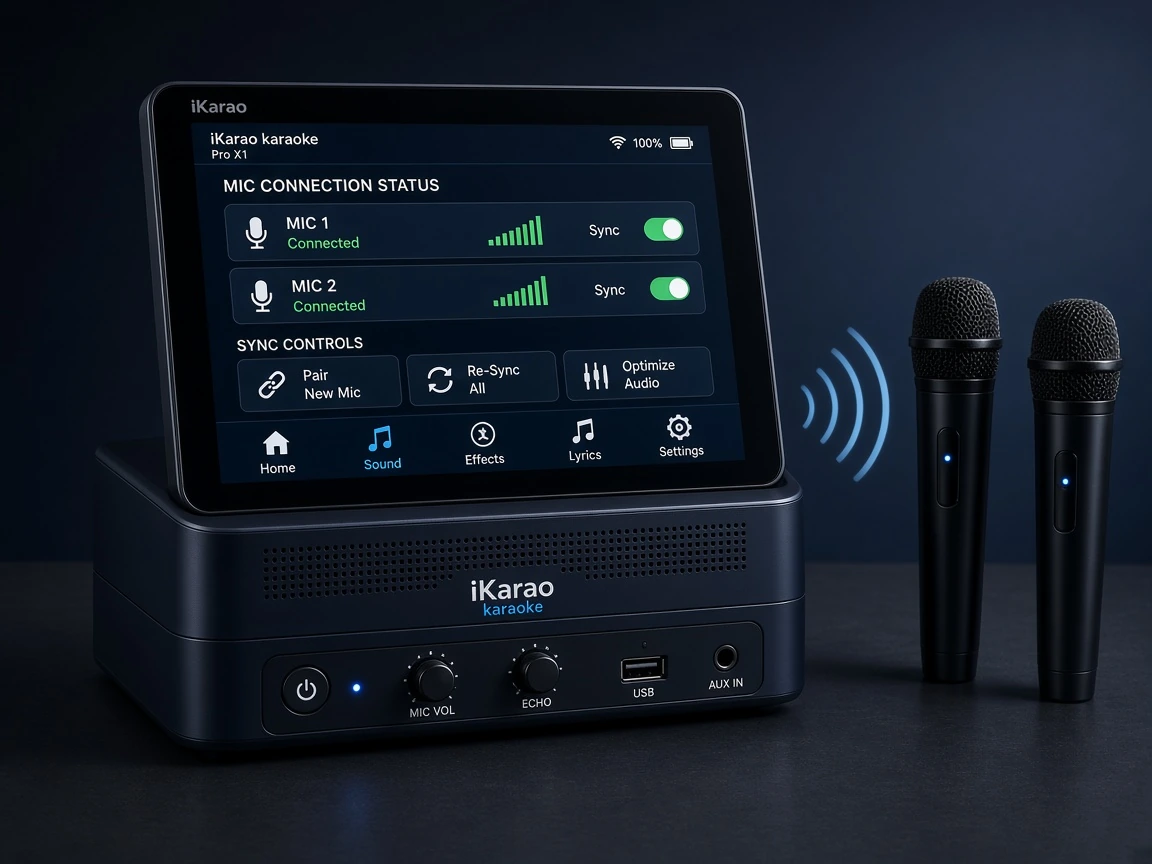
iKarao’s official user-guide hub specifically includes microphone setup, wireless syncing and usage.
This is the correct stage to investigate synchronization—after charge, microphone power, level, docking, and restart have already been checked.
The important caveat is that you should use the synchronization procedure for your exact iKarao model.
Do not assume Break X1, Break X2, Shell S1, Shell S2, and Shell S3 all use exactly the same steps.
And do not invent a universal key combination.
If synchronization is required, use the current manual or official user guide corresponding to your machine.
Do iKarao Microphones Need Normal Bluetooth Pairing?
Not necessarily in the same way that a phone, headphones, or a separate Bluetooth speaker does.
Some iKarao product pages use Bluetooth wireless microphone terminology. Shell S3, for example, is currently described as including two Bluetooth wireless microphones. Its product page also says normal operation requires no setup—turn them on and.
At the same time, iKarao’s official user-guide hub separately provides instructions for microphone wireless syncing.
The safest rule is therefore:
Follow the microphone synchronization instructions for your model rather than assuming the included microphones should be manually paired through the same Bluetooth menu used for phone audio.
This distinction prevents a common troubleshooting mistake.
Shell S3 Microphone Not Working
The Shell S3 is a useful example because its current product page says its two included wireless microphones normally require no setup and are intended to work after being switched on.
If a Shell S3 microphone does not work, troubleshoot in this order:
- check microphone charge;
- confirm the microphone is powered;
- check microphone level;
- reseat it in the charging position;
- restart the microphone;
- restart the Shell S3;
- use S3-specific synchronization/support instructions if the problem remains.
“Normally requires no setup” does not mean synchronization can never fail.
It simply means complicated manual setup should not be the first thing you attempt.
Break X1 or Break X2 Microphone Not Working
Current iKarao comparison information lists two wireless microphones for Break X1 and Break X2, with up to 30 hours of microphone battery life for both models.
The troubleshooting sequence remains:
charge → power → level → dock → restart → model-specific sync
If one Break microphone works while the other does not, focus on the individual microphone before changing system-wide settings.
If both fail, check shared microphone controls and restart the main unit before assuming two separate microphone failures.
Shell S1 or Shell S2 Microphone Not Working
iKarao’s FAQ currently describes rechargeable microphones that return to their machine slots for charging, while the current comparison guide lists microphone runtime differently across the Shell family.
The same troubleshooting logic applies:
- verify charge;
- check microphone power;
- check level;
- compare the two microphones;
- restart;
- follow Shell-specific wireless synchronization instructions if necessary.
Do not copy a battery specification from Shell S1 to Shell S2 simply because both are Shell models.
iKarao Microphone Is On but There Is No Sound
This symptom helps narrow the problem.
If the microphone clearly powers on but you still hear nothing, the problem is less likely to be simply “dead battery.”
Check in this order:
- microphone level;
- mute or relevant input controls;
- whether the second microphone works;
- microphone restart;
- main-unit restart;
- model-specific wireless synchronization.
If the microphone charges, powers on, and still produces no output after correct synchronization, hardware failure becomes a more plausible possibility.
Both iKarao Microphones Have No Sound
When both microphones fail at the same time, do not troubleshoot them as two unrelated problems first.
Check shared controls.
Start with:
- main microphone level;
- whether both microphones are powered;
- whether both have charge;
- main-unit restart;
- wireless synchronization.
Disconnect unnecessary external equipment and test the core system again.
If both microphones remain unavailable after the main unit has restarted and you have followed the model-specific synchronization procedure, use iKarao support.
Only One iKarao Microphone Has No Sound
This is easier to isolate.
If microphone A works and microphone B does not, use microphone A as your control.
You already know:
- speaker output works;
- the machine can receive at least one wireless mic;
- the overall system is operating at some level.
Focus on microphone B.
Check:
battery → dock → power → individual level → restart → synchronization
If the problem remains after those checks, it may be time to investigate support or a compatible replacement.
iKarao Microphone Not Charging
If an iKarao microphone will not charge, begin with the dock.
iKarao says its microphones have built-in rechargeable batteries and are charged when returned to their machine slots.
Try:
- confirm the karaoke machine itself has power;
- reseat the microphone;
- look for the red charging indicator;
- compare with the second microphone;
- restart the main unit if necessary.
If one microphone consistently charges and the other does not, that points toward an individual microphone or docking-related issue rather than a general power problem.
Do not open the microphone to replace the internal battery unless iKarao explicitly provides a user-service procedure for your model.
Microphone Shows a Red Light but Still Does Not Work
A red indicator means the microphone is charging according to iKarao support.
It does not prove that:
- the microphone is synchronized;
- microphone output is enabled;
- the microphone level is high enough;
- the wireless connection is working.
After the microphone has charged:
- remove it from the dock;
- turn it on;
- check the level;
- test it;
- restart it if needed;
- follow the appropriate wireless-sync procedure.
This distinction between charging and connection is important.
iKarao Microphone Keeps Disconnecting or Cutting Out
Intermittent problems require a slightly different approach.
Start by fully charging the affected microphone.
Then:
- test it closer to the machine;
- restart the microphone;
- restart the main unit;
- temporarily remove unnecessary external connections;
- follow the model-specific synchronization procedure.
Avoid jumping to conclusions about the wireless technology itself.
A disconnect should not automatically be blamed on one particular radio band or interference source without evidence.
If only one microphone repeatedly cuts out while the other remains stable under the same conditions, that difference again points toward the affected microphone rather than the entire karaoke machine.
iKarao Microphone Volume Is Too Low
If the microphone works but is unusually quiet, first check the microphone-specific level.
Then check:
- main output level;
- DSP or vocal-effect settings;
- whether the second microphone behaves the same way.
If one microphone is much quieter than the other under equivalent settings, restart the affected microphone and test again.
Avoid simply setting everything to maximum.
A more useful diagnostic is comparing both microphones under similar conditions.
iKarao Microphone Is Squealing or Producing Feedback
Feedback usually indicates a level or positioning problem rather than a failed microphone.
Try:
- lowering microphone volume;
- moving the microphone farther from the speaker;
- avoiding pointing the microphone directly toward the speaker;
- reducing excessive echo or other effects;
- changing speaker placement.
Do not rely on a universal minimum distance.
Feedback depends on gain, room reflections, microphone position, and speaker position.
Microphone Echo or Effects Are Not Working
iKarao’s official user guide includes microphone sound-effect DSP modes as a supported system feature.
If the microphone itself produces sound but the effect does not:
- confirm the correct effect is selected;
- check the relevant effect level;
- switch to another DSP mode;
- restart the system;
- check for a system update if the control remains unresponsive.
An effect problem is not necessarily a wireless microphone connection problem.
Treat the two symptoms separately.
Can an iKarao Software Update Fix a Microphone Problem?
It can be worth checking, but only after the basic hardware and level checks.
iKarao’s current user guide includes over-the-air system firmware upgrades.
An update may be relevant when:
- touchscreen controls behave abnormally;
- microphone settings are not responding;
- a software-related issue appears after a system change.
But a software update cannot be assumed to repair a physically damaged microphone or failed battery.
The order should remain:
charge and controls first → synchronization → software → support
Replacement iKarao Microphone Not Working
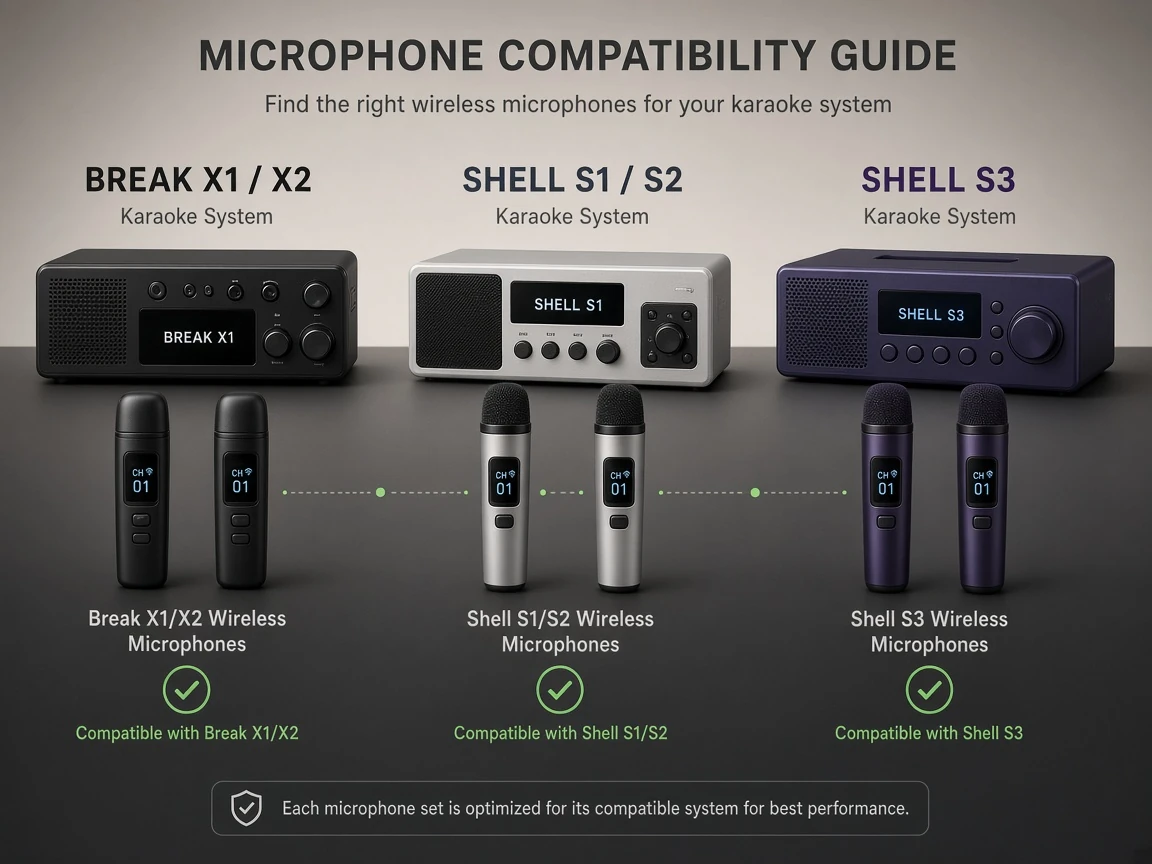
If you bought a replacement microphone and it will not connect, first verify compatibility.
iKarao’s current replacement microphone listing separates compatibility into:
- For Break X1 or Break X2
- For Shell S1 or Shell S2
- For Shell S3.
That is an important clue.
Do not assume every iKarao-branded wireless microphone is interchangeable across the full lineup.
For a replacement microphone:
- verify the correct model family;
- charge it;
- turn it on;
- follow the synchronization procedure for that model family;
- contact support if a confirmed-compatible microphone still will not connect.
Can You Use a Different Wireless Microphone With iKarao?
Do not assume universal compatibility.
The current official replacement listing divides microphones by model family, which means compatibility should be checked before purchasing.
A microphone being wireless does not automatically mean the iKarao system can pair with it.
If replacing an included microphone, model-specific compatibility is more important than simply matching a broad label such as “Bluetooth microphone.”
iKarao Microphone Troubleshooting Decision Tree
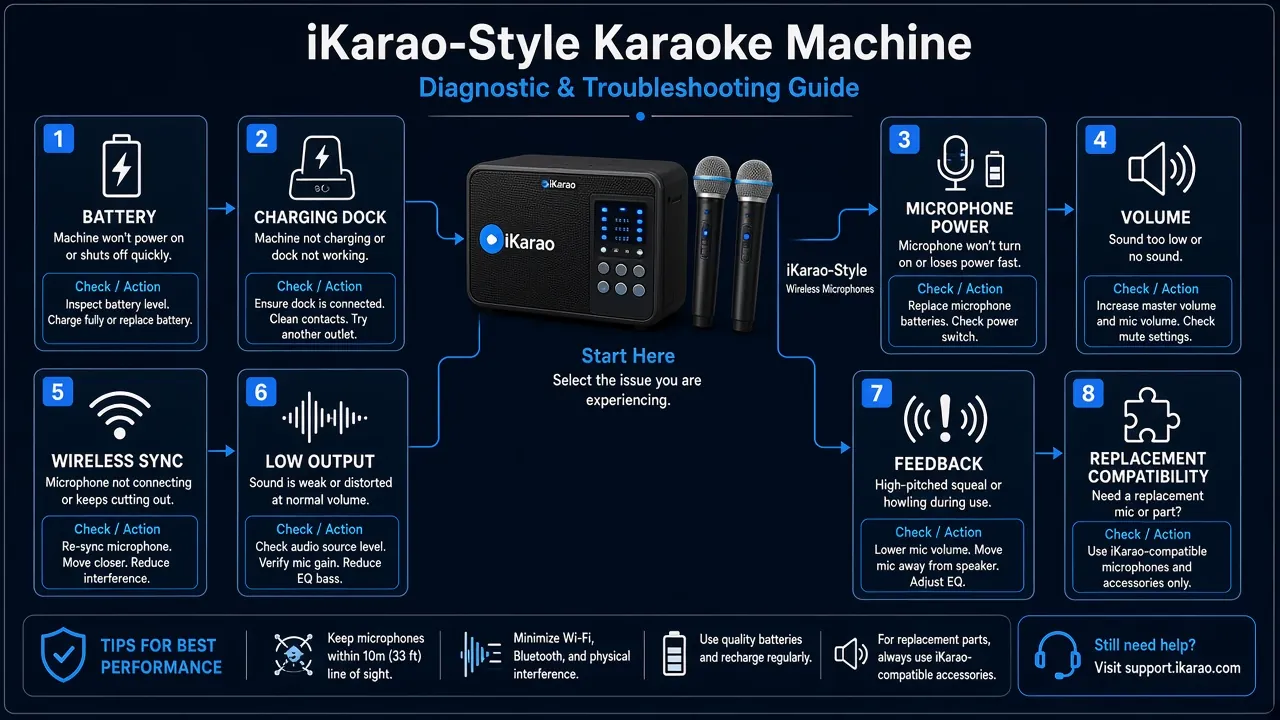
Use this faster path if you are not sure where to begin:
iKarao microphone not working │ ├── One mic or both? │ ├── Does the affected mic have charge? │ └── NO → Dock and charge it │ ├── Does the mic turn on? │ └── NO → Reseat it and check charging │ ├── Is microphone level high enough? │ └── NO → Increase gradually │ ├── Restart the microphone │ ├── Restart the iKarao │ ├── Still not connected? │ └── Follow model-specific wireless sync │ └── Still failing? ├── One mic only │ → Individual mic/support/replacement │ └── Both mics → Shared settings/main-unit/supportQuick Troubleshooting Table
| Symptom | Check First | Check Next |
|---|---|---|
| One microphone has no sound | That microphone’s charge | Individual synchronization |
| Both microphones have no sound | Main microphone level | Restart and synchronization |
| Microphone will not turn on | Charge | Docking position |
| Microphone will not charge | Dock position | Main-unit power |
| Red charging light appears | Allow charging | Test after charging |
| Mic turns on but has no output | Microphone level | Wireless synchronization |
| Mic repeatedly cuts out | Charge and short-range test | Restart and resync |
| Microphone is very quiet | Mic level | DSP/settings |
| Microphone squeals | Lower mic level | Reposition mic and speaker |
| Replacement mic will not connect | Model compatibility | Correct sync procedure |
Check current price for the iKarao smart karaoke machine.
When to Contact iKarao Support
Move beyond basic troubleshooting when:
- the microphone never shows the expected charging behavior despite correct docking;
- one microphone repeatedly fails while the other works normally;
- model-specific wireless synchronization does not restore the connection;
- the microphone appears physically damaged;
- a confirmed-compatible replacement microphone will not connect;
- both microphones remain unavailable after the main unit has been restarted and the correct settings have been checked.
iKarao provides model-specific support resources and manuals through its user-guide and support pages.
Avoid repeatedly factory-resetting the entire system or opening the microphone before using the official support route.
Frequently Asked Questions
Common possibilities include low charge, the microphone being powered off, low microphone level, incorrect docking, lost wireless synchronization, or an individual microphone fault. Start by checking whether one microphone or both are affected.
If one microphone works normally, focus on the failed microphone. Check its battery, charging indicator, power, level, restart it, and then follow the model-specific synchronization process if needed.
Check shared settings first, especially microphone level and the main unit. Restart the machine and both microphones before moving to model-specific wireless synchronization.
iKarao says its microphones have built-in rechargeable batteries and charge when returned to their designated storage slots on compatible machines.
According to iKarao, the red indicator is on while the microphone is charging and turns off when charging is complete.
No. It indicates charging status. Wireless connection and microphone output are separate issues.
Use the wireless-sync instructions for your exact model. iKarao’s official user-guide hub includes microphone setup and wireless syncing, but the steps should not be assumed to be identical across every model.
Do not assume that is required. Some product pages describe the microphones using Bluetooth terminology, while iKarao separately provides model-specific wireless-sync guidance. Follow the instructions for the exact machine.
Start by fully charging it, testing closer to the machine, restarting the microphone and main unit, and repeating the model-specific synchronization procedure. If only one mic is affected consistently, investigate that individual microphone.
Check the microphone-specific level before changing the master output. Compare it with the second microphone under similar settings and check DSP controls if necessary.
Yes. iKarao currently sells replacement wireless microphones, but the available options are divided by model family.
No universal compatibility should be assumed. iKarao currently lists separate replacement options for Break X1/X2, Shell S1/S2, and Shell S3.
Final Troubleshooting Checklist
When an iKarao microphone stops working, troubleshoot from the simplest explanation toward the more complicated ones:
one mic or both → battery → charging dock → microphone power → microphone level → restart microphone → restart main unit → model-specific wireless sync → software check → support or replacement
The most useful clue is often whether the problem affects one microphone or both.
If one works and the other does not, concentrate on the failed microphone.
If both stop working, investigate the shared controls and main unit first.
If a microphone charges but has no output, remember that charging and wireless synchronization are separate states.
And if a replacement microphone does not connect, verify compatibility with the correct iKarao model family before assuming either the microphone or karaoke machine is defective.