iKarao Not Connecting to WiFi? How to Fix It
If your iKarao is not connecting to WiFi, first identify where the connection is failing.
Looking for the current iKarao smart karaoke machine with a built-in lyrics display and two wireless microphones? Check the latest listing here.
A Wi-Fi network that does not appear, a password that is rejected, a machine that says “connected” but cannot reach the internet, and a single app that refuses to load are different problems. Troubleshooting them as though they were the same issue can waste time.
Table of Contents
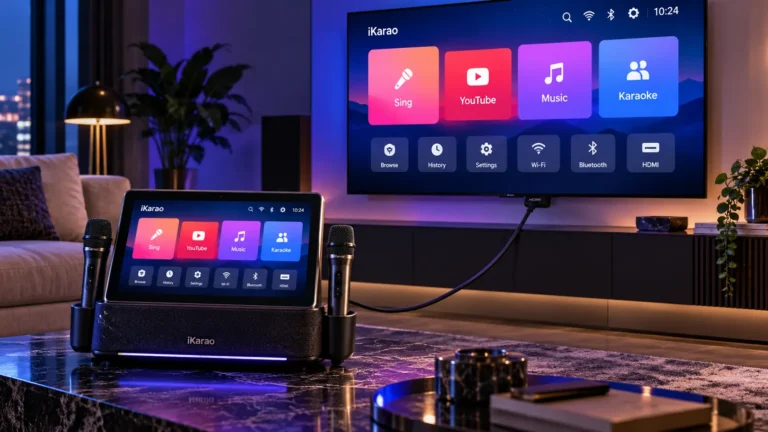
iKarao’s current instructions use a straightforward connection process: open Settings, select Wi-Fi, choose your network, and enter its password. Its smart interface uses Wi-Fi for online functions such as YouTube, KaraFun, and system-related services.
The quickest troubleshooting order is:
Wi-Fi enabled → network visible → password accepted → connected status → internet access → app test → restart → software check → second network test
Research note: This guide is based on current iKarao support material and model documentation. General router and network diagnostic steps are identified as troubleshooting techniques rather than manufacturer-specific instructions. Menus and wireless specifications can vary by model and software version.
iKarao Wi-Fi Quick Fix
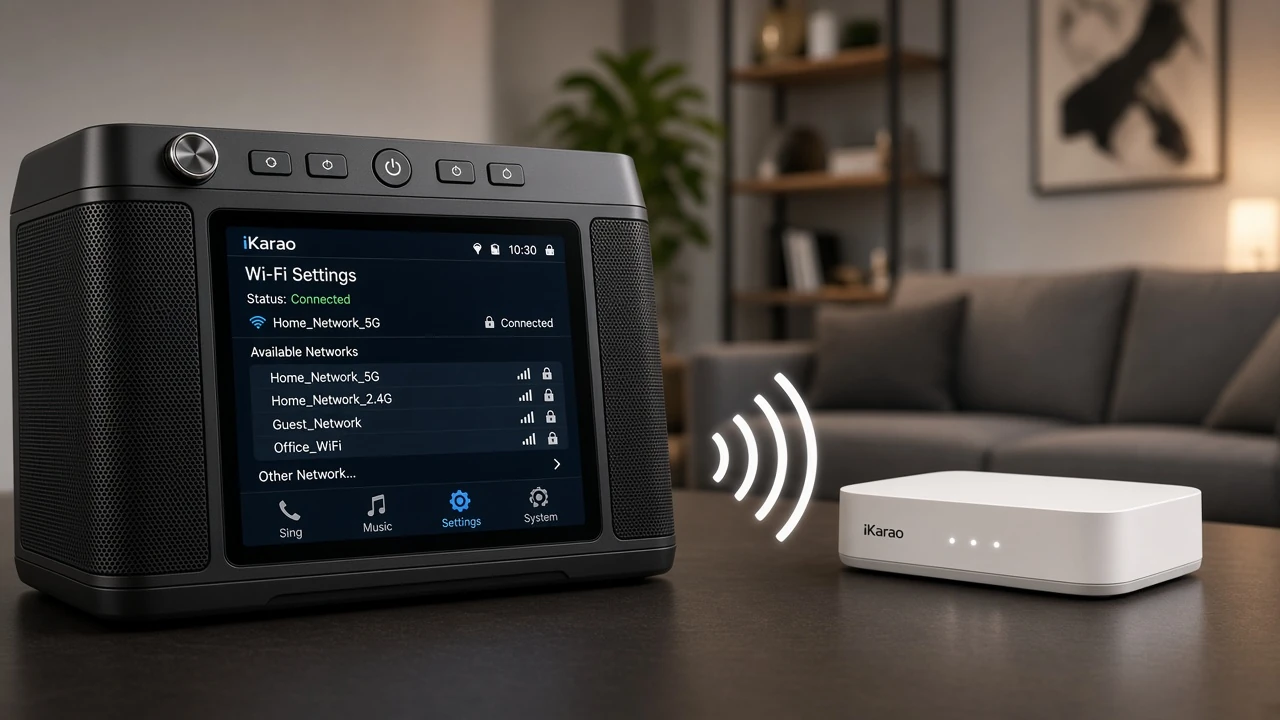
Before changing router settings or resetting anything, try these steps:
- Open Settings → Wi-Fi.
- Make sure Wi-Fi is enabled.
- Check whether your network appears.
- Select the correct network.
- Re-enter the password carefully.
- Confirm that the machine reports a connection.
- Open a second online app to test actual internet access.
- Restart the iKarao if the connection fails.
- If other devices are also offline, restart the router.
- If only one app fails, troubleshoot that app rather than the Wi-Fi connection.
The first part of this sequence follows iKarao’s current documented Wi-Fi setup path.
How to Connect an iKarao to Wi-Fi
For normal first-time connection, iKarao currently instructs users to:
- Open Settings on the built-in touchscreen.
- Select Wi-Fi.
- Choose the network you want to use.
- Enter the Wi-Fi password.
- Wait for the machine to connect.
Once connected, the built-in smart system can access supported online functions. iKarao currently describes its machines as using an integrated Android-based interface with apps such as YouTube and KaraFun.
If that basic process does not work, the next step is determining where it fails.
First Check: Can the iKarao See Your Wi-Fi Network?
Open the Wi-Fi settings and look at the available network list.
There are two possible paths.
Your Network Appears
If the network name is visible, the iKarao’s Wi-Fi interface is at least detecting that network.
Move on to:
password → connection → internet access
Your Network Does Not Appear
If the network is missing entirely, focus first on:
- whether Wi-Fi is enabled;
- whether the router is broadcasting;
- distance from the router;
- whether other devices can see the same network;
- network compatibility.
Do not immediately assume the karaoke machine has failed.
Wi-Fi Network Not Showing on iKarao
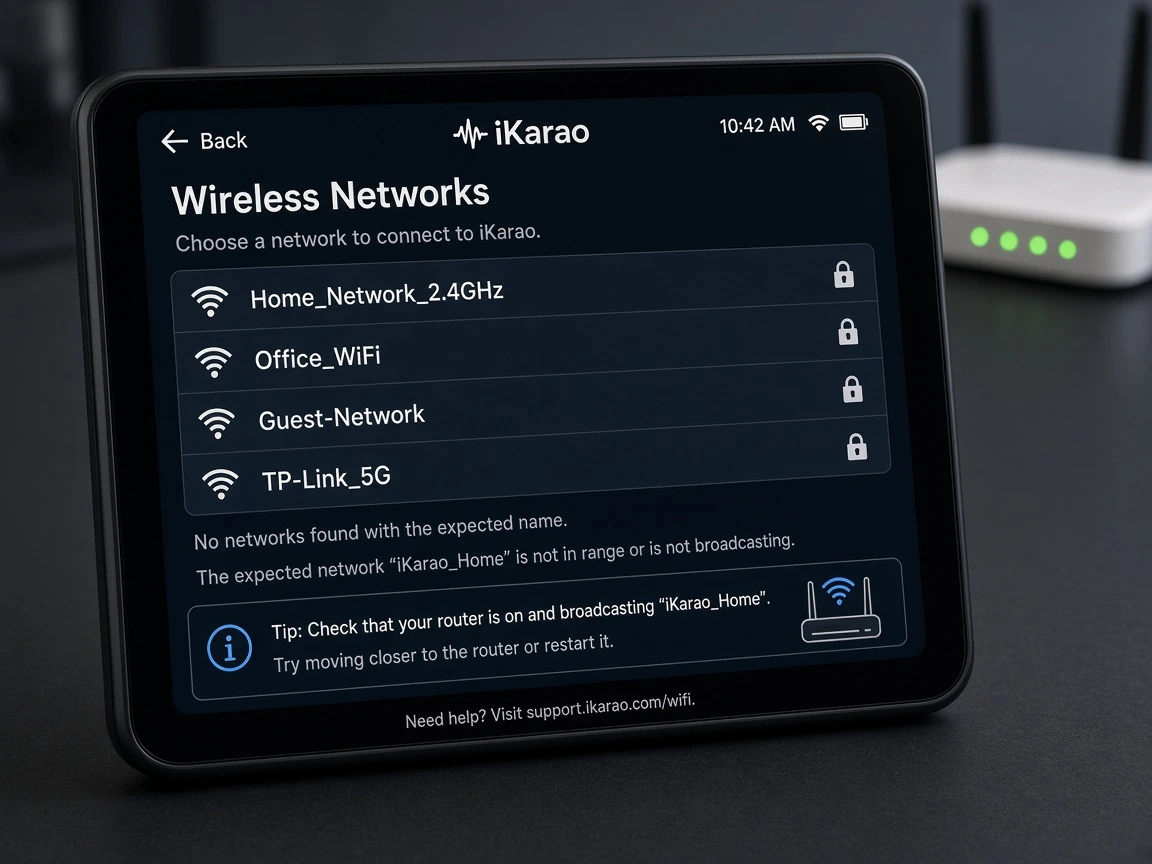
If your network does not appear in the list, start with the simplest checks.
First, make sure Wi-Fi is actually switched on in the iKarao settings.
Then wait briefly for the network list to refresh.
If the network still does not appear, temporarily move the machine closer to the router.
Next, check whether a phone, tablet, or laptop can see the same network from approximately the same location.
This gives you a useful diagnostic split:
Network missing from several devices → investigate the router/network first.
Network visible on other devices but not the iKarao → continue troubleshooting the iKarao, compatibility, or software.
Restarting the iKarao is also reasonable at this stage.
If multiple devices have suddenly lost the network, restarting the router can help distinguish a temporary router problem from a device-specific issue.
Does iKarao Support 2.4GHz and 5GHz Wi-Fi?
Do not assume every iKarao model has exactly the same wireless specification.
For example, the current Shell S1 product documentation explicitly lists Wi-Fi 2.4G/5G and also identifies Wi-Fi 802.11ac.
The current iKarao model-comparison table lists:
| Model | Manufacturer Wi-Fi Listing |
|---|---|
| Shell S3 | Wi-Fi |
| Shell S2 | Wi-Fi |
| Shell S1 | 802.11ac |
| Break X2 | 802.11ac |
| Break X1 | 802.11ac |
Break X1 and Break X2 product documentation also explicitly lists Wi-Fi 802.11ac.
The important editorial point is that Wi-Fi support is not documented with the same level of detail for every model.
Therefore, avoid troubleshooting advice such as:
“Every iKarao requires 2.4GHz.”
or:
“All iKarao models support both bands.”
Check the current documentation for the exact model when network-band compatibility matters.
iKarao Sees the Network but Will Not Connect
If the network name appears but the connection fails, credentials are the next thing to check.
Select the correct network and re-enter the password carefully.
Pay particular attention to:
- uppercase versus lowercase letters;
- numbers;
- similar-looking characters;
- special characters;
- accidental spaces.
If the router password was recently changed, the iKarao may still be trying to use old saved credentials.
If your software version provides a normal Forget Network or Remove Network option, remove the saved connection and reconnect using the current password.
Do not assume the exact location of that option is identical across every software version.
iKarao Says the Wi-Fi Password Is Wrong
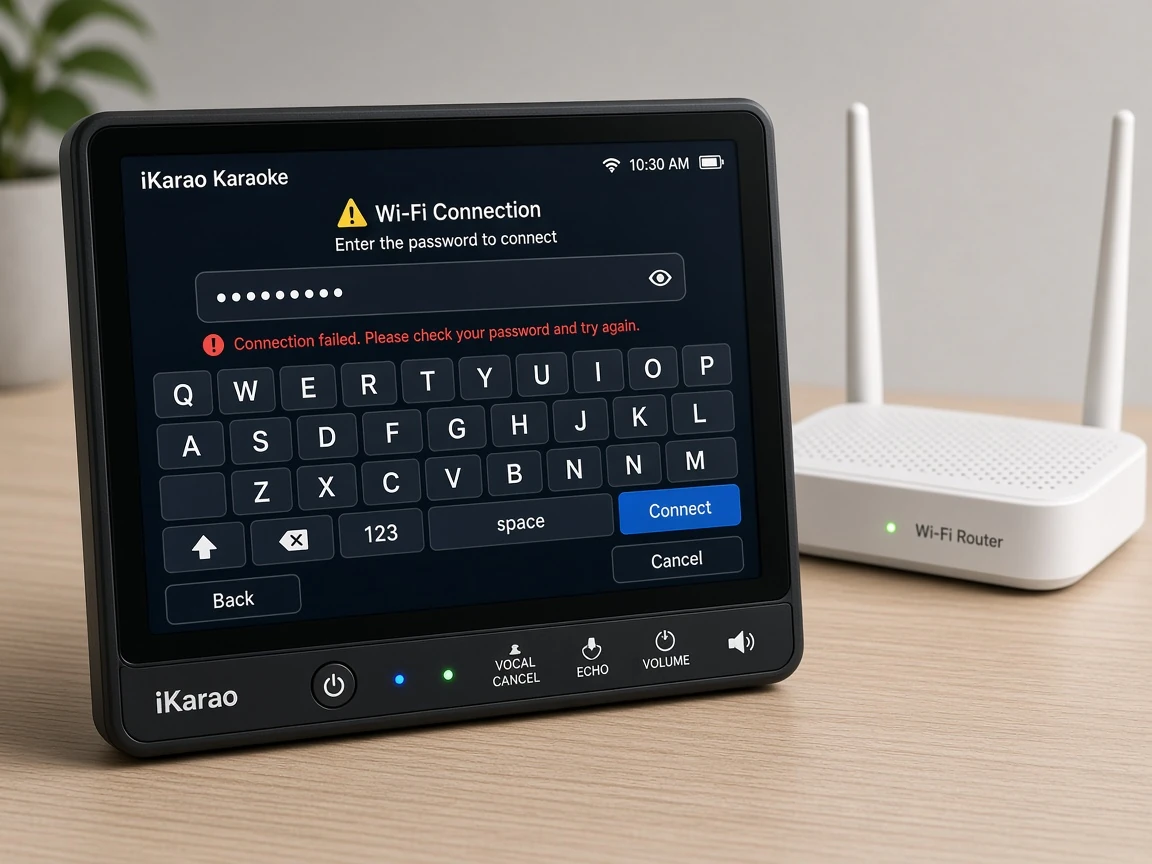
A password rejection does not necessarily mean the machine has a Wi-Fi hardware fault.
Verify the password using another device.
If another phone or tablet can join the same network using that password, enter it again manually on the iKarao.
Also check that you selected the correct network. Homes and venues sometimes have several similarly named networks.
For example:
HomeNetwork
and:
HomeNetwork-Guest
may use different passwords.
If the router password changed recently, removing the old saved connection before reconnecting can also help when that option is available.
Avoid immediately modifying the router’s security settings just because one password attempt failed.
iKarao Is Connected to Wi-Fi but Has No Internet
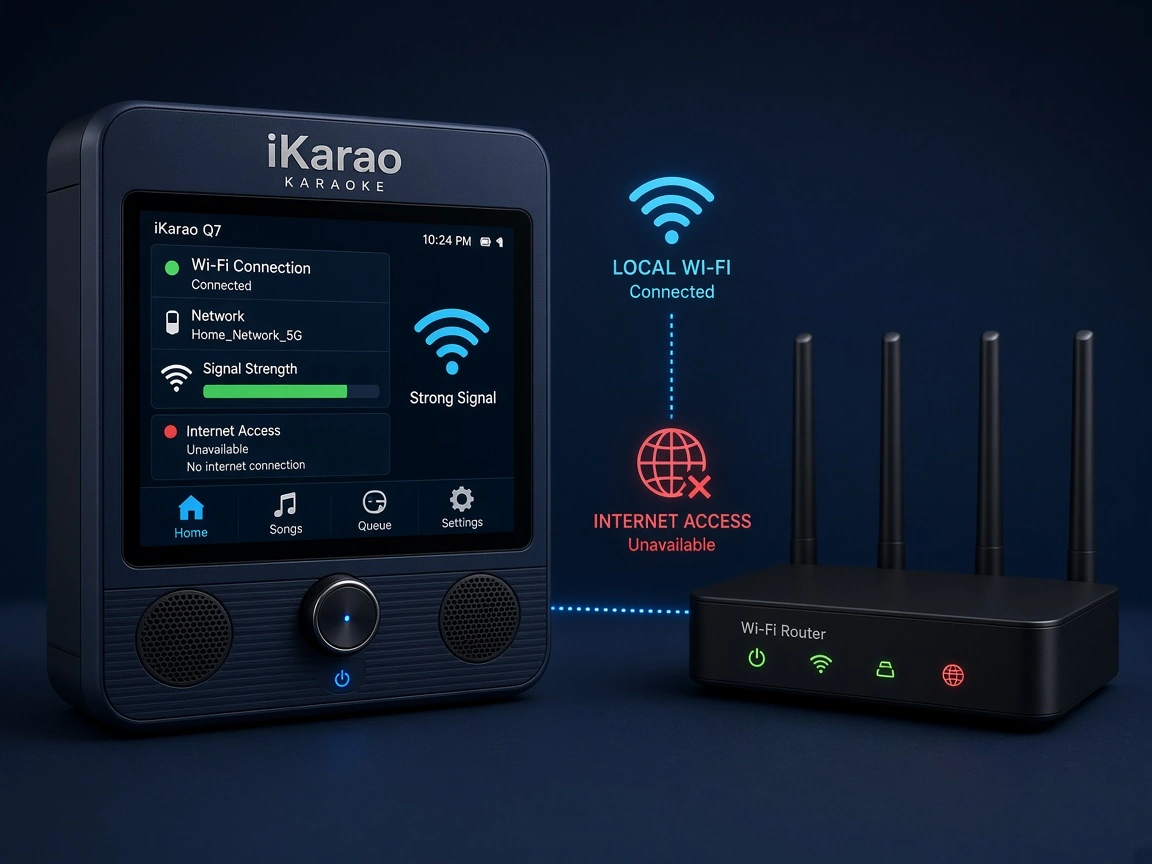
This distinction is one of the most important in the entire troubleshooting process:
Connected to Wi-Fi does not necessarily mean connected to the internet.
Wi-Fi only confirms that the iKarao has joined the local wireless network.
The router itself might have no internet connection.
To isolate the problem:
- Confirm the iKarao shows a Wi-Fi connection.
- Open an online app.
- Test another online app.
- Connect a phone to the same Wi-Fi.
- Check whether the phone can reach the internet.
If the phone also has no internet, the problem is more likely to involve the router or internet service.
If the phone works normally but the iKarao does not, continue troubleshooting the iKarao itself.
That may include restarting it, checking software, or testing another network.
Test More Than One Online App
Do not diagnose the entire Wi-Fi connection from a single app.
For example:
YouTube fails, but KaraFun opens normally
suggests that the iKarao still has working internet access.
Likewise:
KaraFun fails, but YouTube loads
points away from a total Wi-Fi failure.
When one online service works and another does not, investigate:
- the affected app;
- account/login state;
- app version;
- software compatibility;
- temporary service problems.
This is much more useful than repeatedly reconnecting the router when internet access is already working.
YouTube Not Working on iKarao
If YouTube will not load, first verify whether another online service works.
A useful sequence is:
- Confirm Wi-Fi shows connected.
- Open another online app.
- If the second app works, close and reopen YouTube.
- Restart the iKarao.
- Check for software or app updates.
- Test YouTube again.
The current iKarao ecosystem uses the built-in touchscreen and Wi-Fi for direct YouTube access; for example, Shell S1 documentation explicitly describes using YouTube after connecting the machine to Wi-Fi.
If other online apps work normally, call the problem YouTube-specific rather than “Wi-Fi not working.”
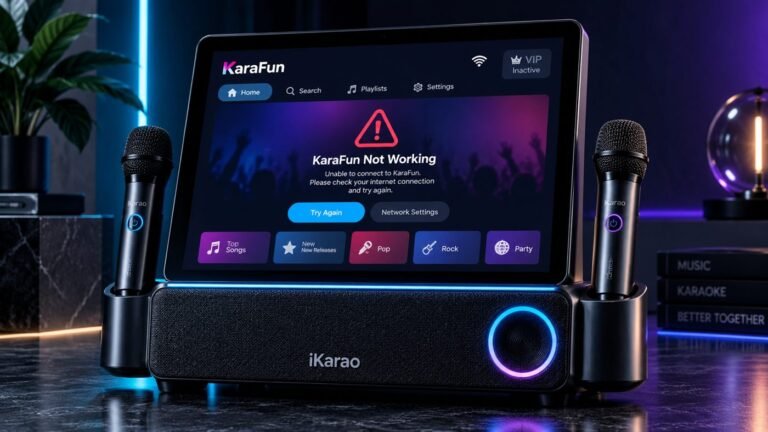
KaraFun Not Connecting on iKarao
KaraFun problems should also be separated from general internet problems.
Start by checking whether another online app works.
If the connection itself is fine:
- check that KaraFun is current;
- check that the iKarao software is current;
- confirm the relevant account or activation status;
- restart the app or device.
iKarao’s current FAQ says its KaraFun promotion requires compatible software versions, with version requirements varying across model families.
That means an outdated system or KaraFun installation may create an app problem even when the Wi-Fi connection itself is working.
A dedicated iKarao KaraFun not working article can cover activation in greater depth.
Restart the iKarao
If the network is visible and the password is correct but the connection remains unstable, restart the main unit.
A simple process is:
- close unnecessary apps;
- turn the iKarao off normally;
- wait briefly;
- turn it back on;
- return to Settings → Wi-Fi;
- reconnect if necessary;
- test another online app.
Do not use a factory reset as the first troubleshooting step.
A normal restart is far less disruptive.
Restart the Router
Router troubleshooting becomes more relevant when other devices are also experiencing problems.
For example:
Phone offline + laptop offline + iKarao offline
strongly suggests looking beyond the karaoke machine.
A normal router restart may resolve a temporary network issue.
This is not the same as a factory reset.
Do not factory-reset a router merely because the iKarao failed to connect once. A factory reset can erase network names, passwords, ISP settings, and other configuration.
Move the iKarao Closer to the Router
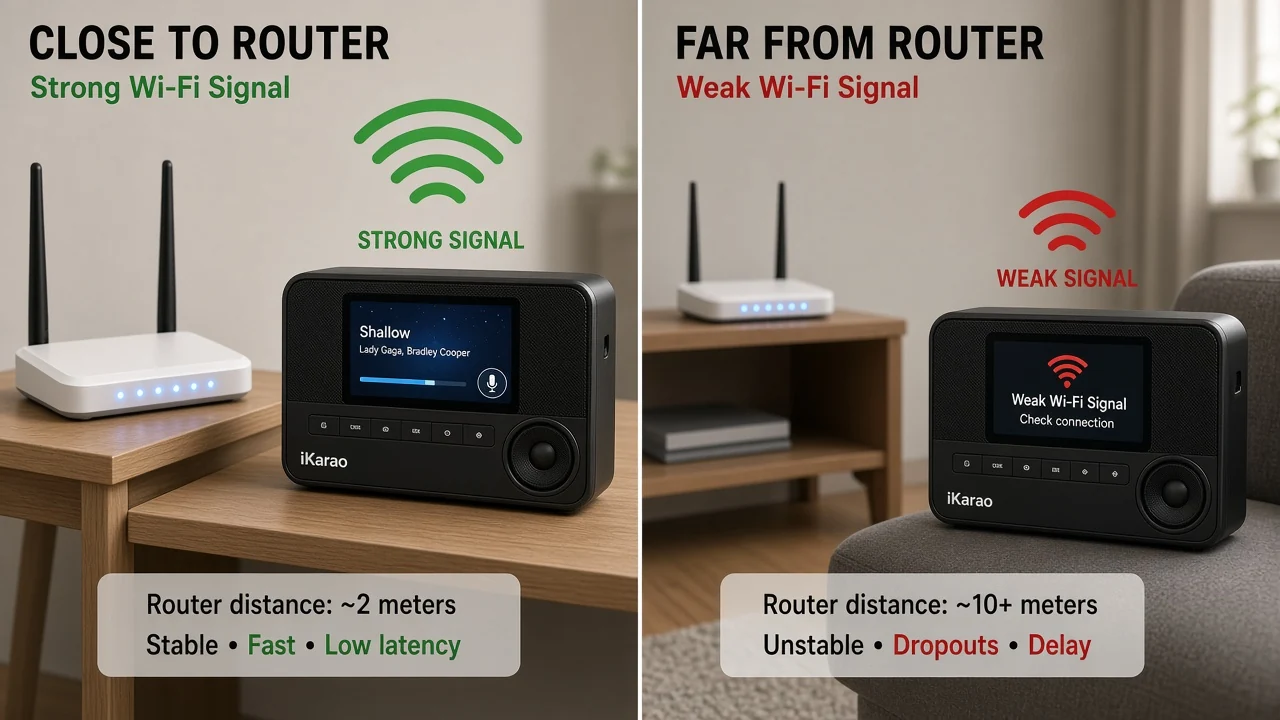
If the network appears inconsistently or the connection keeps dropping, test the machine closer to the router.
Do not rely on advertised maximum-range numbers as guaranteed real-world Wi-Fi coverage.
For example, iKarao markets some current models with long-range wireless claims, but actual performance can depend on walls, building materials, router placement, nearby networks, and the local wireless environment.
The useful test is comparative:
Works reliably near router, unstable farther away
suggests that signal conditions may be contributing.
That is more useful than applying a universal maximum distance.
iKarao Keeps Disconnecting From Wi-Fi
Intermittent Wi-Fi deserves a different troubleshooting path from a machine that cannot connect at all.
Try:
- testing closer to the router;
- restarting the iKarao;
- checking another online app;
- checking whether phones or laptops also disconnect;
- restarting the router if multiple devices are affected;
- checking for iKarao software updates;
- testing another known-working network if practical.
If the iKarao repeatedly disconnects from several unrelated networks while other devices remain stable, that is stronger evidence for an iKarao-specific problem.
At that stage, model-specific support becomes appropriate.
Test a Phone Hotspot to Isolate the Problem
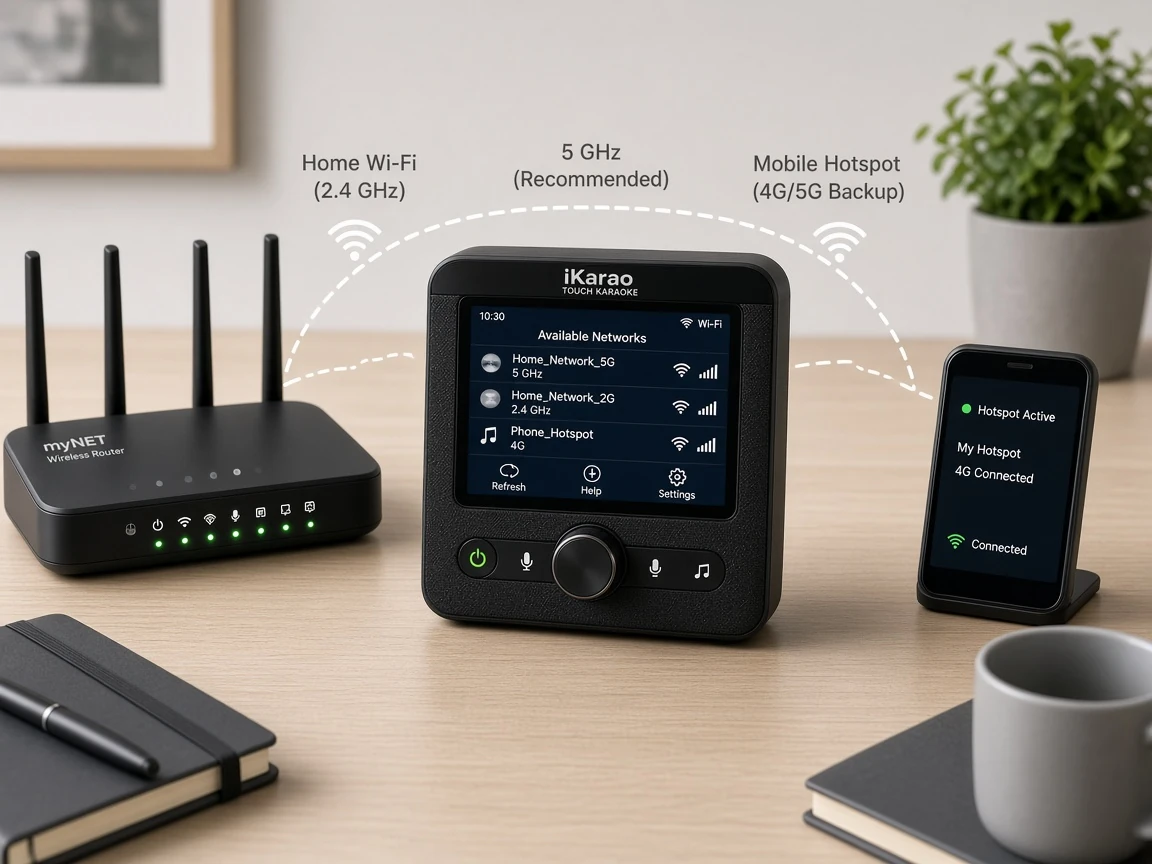
A phone hotspot can be a useful diagnostic test when available.
This is general network troubleshooting rather than a specific iKarao manufacturer procedure.
The goal is to determine whether the failure follows the karaoke machine or stays with your home network.
If iKarao Connects to the Hotspot
That demonstrates that the machine can establish at least one Wi-Fi connection.
Focus next on:
- home router;
- saved credentials;
- network compatibility;
- home-network configuration.
If iKarao Cannot Connect to the Hotspot Either
The problem may lie more strongly with:
- iKarao settings;
- software;
- wireless functionality;
- model-specific compatibility.
Do not disable hotspot security just to run the test.
Use a properly secured hotspot with a known password.
Forget the Wi-Fi Network and Reconnect
Saved network information can become outdated, especially after:
- router replacement;
- network-name changes;
- password changes.
If the current iKarao software provides a normal Forget or Remove Network option:
- remove the saved network;
- scan again;
- select the correct network;
- enter the current password;
- test internet access.
Because software versions can differ, avoid promising that the control appears in exactly the same menu position on every iKarao.
Check for iKarao Software Updates
iKarao says its products receive periodic OTA updates, and its current user-guide hub specifically includes over-the-air firmware upgrading.
An update is worth investigating when:
- Wi-Fi controls behave abnormally;
- apps fail despite confirmed internet access;
- the device has not been updated for some time;
- KaraFun requires a newer version.
However, software should not be blamed automatically.
Check basic Wi-Fi visibility, password, router access, and internet availability first.
What If the iKarao Needs an Update but Cannot Get Online?
Do not download unofficial firmware from random websites.
iKarao’s current support documentation indicates that some outdated systems may require manufacturer assistance with upgrades, particularly around KaraFun eligibility.
If the machine cannot connect to any working network and therefore cannot obtain the required update, use the current support process for the exact model.
This is safer than experimenting with undocumented firmware files.
Hotel, Venue, or Guest Wi-Fi Problems
Public wireless networks can work differently from a normal home router.
Some require a second browser-based sign-in page after the Wi-Fi password or network selection.
This is known as a captive portal.
The current public iKarao documentation reviewed for this guide does not clearly establish captive-portal compatibility.
Therefore, if an iKarao joins hotel or guest Wi-Fi but still cannot get online, do not immediately assume its wireless hardware is defective.
A useful comparison is to test:
- a normal private Wi-Fi network;
- or a secured phone hotspot.
If those work, the venue network or its login system may be the relevant difference.
Does Bluetooth Fix an iKarao Wi-Fi Problem?
No.
Bluetooth and Wi-Fi serve different functions.
On current iKarao systems, Bluetooth can be used for compatible external-device audio, while Wi-Fi provides network access for the smart interface and online services. iKarao documents both as separate connectivity features.
If Wi-Fi is broken, Bluetooth may still work.
But Bluetooth does not repair the Wi-Fi connection or provide internet access to the built-in apps by itself.
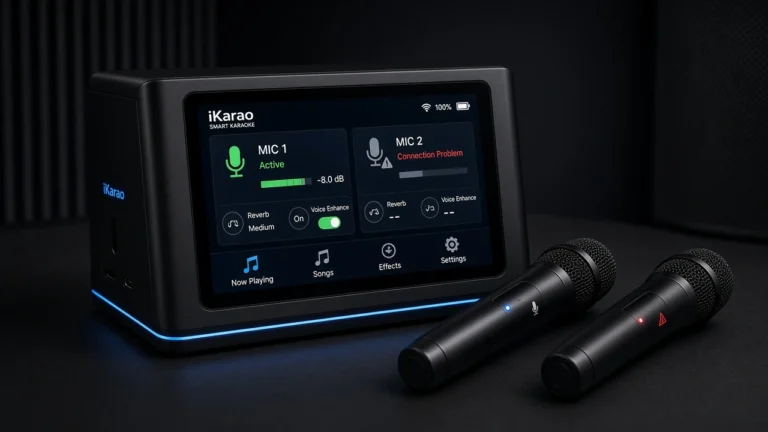
Do iKarao Wireless Microphones Need Wi-Fi?
Do not confuse the wireless microphones with internet Wi-Fi.
A microphone problem and an internet problem are separate troubleshooting paths.
If YouTube stops loading but both microphones still produce normal output, that makes sense: losing internet connectivity does not necessarily mean the microphone link has failed.
Likewise, a microphone that will not connect does not mean the home router needs to be restarted.
If the microphones are the problem, use the dedicated iKarao microphone not working troubleshooting guide instead.
Model-Specific iKarao Wi-Fi Notes
Break X1
Current product documentation lists Wi-Fi 802.11ac alongside Bluetooth V5.4.
Break X2
The current Break X2 page also lists Wi-Fi 802.11ac and Bluetooth V5.4.
Shell S1
Shell S1 has the clearest band-specific documentation among the current sources reviewed here. Its product page explicitly states Wi-Fi 2.4G/5G, and elsewhere on the same page lists Wi-Fi 802.11ac.
Shell S2 and Shell S3
The current full-line comparison confirms Wi-Fi for both models but does not provide the same detailed protocol notation in that table.
That is why network advice should remain model-aware rather than assuming every iKarao has identical wireless hardware.
iKarao Wi-Fi Troubleshooting Decision Tree
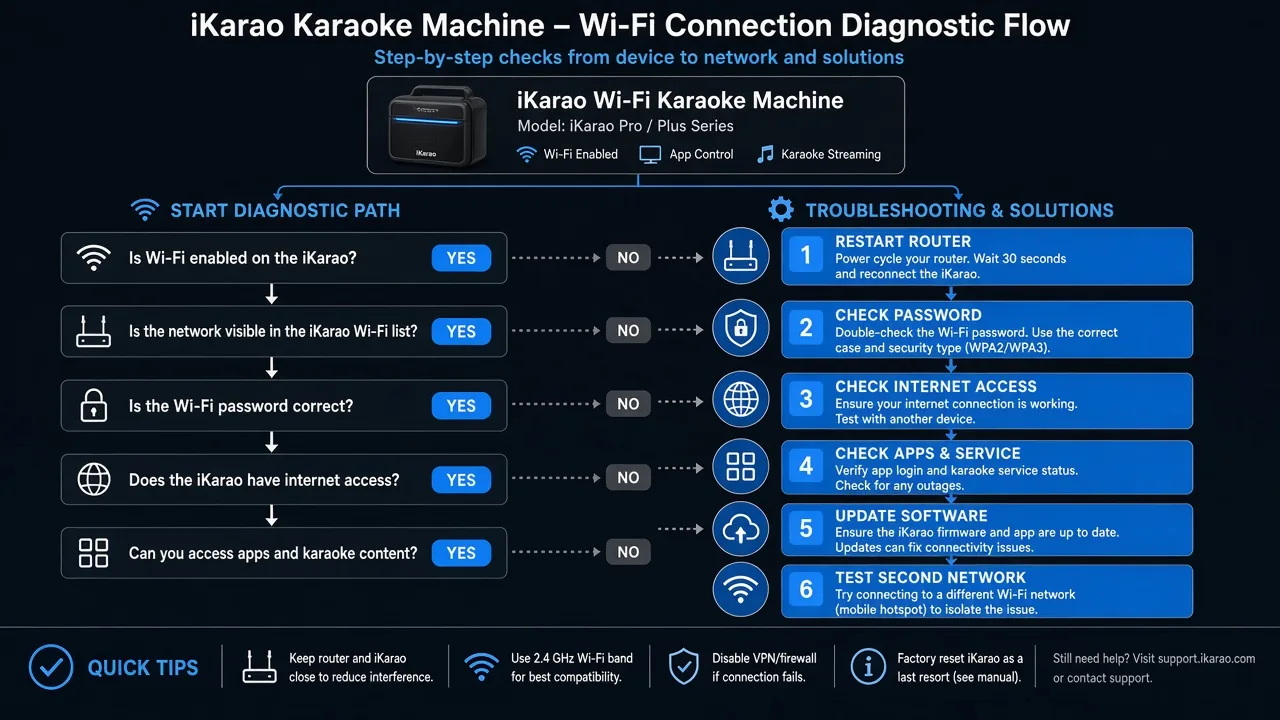
iKarao not connecting to Wi-Fi │ ├── Is Wi-Fi enabled? │ └── NO │ → Settings → Wi-Fi → turn it on │ ├── Can you see your network? │ │ │ ├── NO │ │ → Refresh network list │ │ → Move closer to router │ │ → Check network on another device │ │ → Restart iKarao/router if appropriate │ │ │ └── YES │ ├── Is the password accepted? │ └── NO │ → Verify network and password │ → Re-enter credentials │ ├── Does iKarao show connected? │ └── NO │ → Restart and reconnect │ ├── Does another online app work? │ │ │ ├── YES │ │ → Wi-Fi works │ │ → Troubleshoot the failing app │ │ │ └── NO │ ├── Do other devices have internet? │ │ │ ├── NO │ │ → Investigate router/internet service │ │ │ └── YES │ → Continue iKarao troubleshooting │ ├── Restart iKarao ├── Check software updates ├── Test a second network if practical │ └── Still failing on known-working networks? → Use model-specific iKarao supportQuick Troubleshooting Table
| Problem | Check First | Check Next |
|---|---|---|
| Network not visible | Wi-Fi enabled | Router visibility and signal |
| Password rejected | Password accuracy | Saved network/reconnect |
| Says connected but no internet | Second online app | Other devices on same network |
| YouTube will not load | Internet access | YouTube/app restart |
| KaraFun will not connect | Internet access | App/system version |
| Wi-Fi keeps disconnecting | Test near router | Restart/update |
| All devices are offline | Router/internet | Router restart |
| Only iKarao is offline | Restart iKarao | Second network test |
| Hotspot works, home network does not | Home network | Router/settings |
| No working network connects | iKarao software/settings | Official support |
What Not to Do First
Avoid starting with drastic changes.
Do not immediately:
- factory-reset the iKarao;
- factory-reset the router;
- install unofficial firmware;
- disable router security;
- change multiple router settings simultaneously;
- assume the device requires 2.4GHz;
- assume every iKarao supports every 5GHz configuration;
- troubleshoot microphones through the router;
- change HDMI settings to solve an internet problem.
Start with network visibility, password, actual internet access, and a second-app test.
Check current price for the iKarao smart karaoke machine.
When to Contact iKarao Support
Manufacturer support becomes appropriate when:
- no wireless networks ever appear;
- the machine fails to connect to multiple known-working networks;
- Wi-Fi controls freeze or disappear;
- connection repeatedly drops across unrelated networks;
- software appears to require an update but the machine cannot get online;
- normal restart, network testing, and software checks do not restore connectivity.
iKarao currently provides an after-sales form and direct support contact options through its official contact page.
Avoid opening the machine or installing unofficial firmware before using the model-specific support route.
Frequently Asked Questions
Open Settings, select Wi-Fi, choose your network, and enter the password. That is the current connection process documented by iKarao.
Start by determining whether the network is visible. If it is, verify the password. If the machine connects but cannot reach the internet, check another online app and test another device on the same network.
Make sure Wi-Fi is enabled, refresh the network list, test closer to the router, and see whether other devices can detect the same network. If other devices see it but the iKarao does not, continue with model-specific compatibility and software troubleshooting.
A Wi-Fi connection only confirms communication with the local network. Test internet access on another app and another device connected to the same router to determine whether the problem is the internet service, router, or iKarao.
Test another internet-dependent app. If another service works, Wi-Fi itself is probably functioning and the problem is more likely specific to YouTube or the software environment.
Confirm internet access first, then check the KaraFun app and system versions. Current iKarao support ties KaraFun activation to compatible software versions.
Support should be checked by exact model. Shell S1 explicitly advertises 2.4G/5G Wi-Fi, while the current comparison material provides less detailed Wi-Fi descriptions for some other Shell models.
Shell S1 explicitly lists 2.4G/5G support. Do not automatically apply that specification to every iKarao without checking its current documentation.
A secured phone hotspot can be useful as a general troubleshooting test. If the iKarao connects to the hotspot but not your home Wi-Fi, investigate the home network next.
Test it closer to the router, restart the machine, check whether other devices also disconnect, and check for system updates. If it disconnects from several known-working networks, use model-specific support.
Internet Wi-Fi and the included wireless microphone system are separate functions. A microphone problem should not automatically be treated as a router or internet problem.
Bluetooth is a separate connection and may still work for compatible external-device audio, but it does not restore internet access to the built-in apps.
Final Troubleshooting Checklist
When an iKarao will not connect to Wi-Fi, diagnose the problem in this order:
Wi-Fi enabled → network visible → correct password → connected status → actual internet access → second-app test → device restart → router check → software update → second network test → support
The key is determining where the failure occurs.
If the network does not appear, investigate discovery, signal, and compatibility.
If the network appears but rejects the password, focus on credentials.
If the machine says connected but no online apps work, separate local Wi-Fi connectivity from actual internet access.
If one online app works and another does not, stop treating the issue as a general Wi-Fi failure and troubleshoot the affected app.
And throughout the process, keep internet Wi-Fi, Bluetooth audio, and wireless microphones separate. They are different connection systems, and changing one usually will not repair a problem with another.