How to Connect an iKarao to a TV
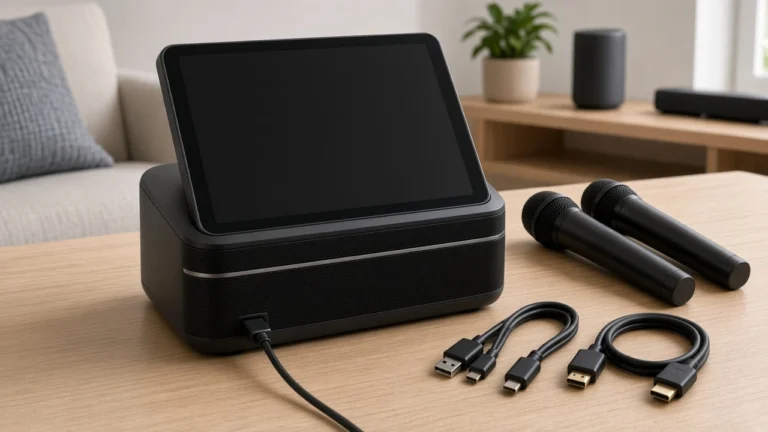
Connecting an iKarao to a TV is usually straightforward when your model has an HDMI output. Connect the iKarao’s HDMI port to an HDMI input on the television, select the matching source on the TV, and the television can act as a larger display.
Looking for the current iKarao smart karaoke machine with a built-in lyrics display and two wireless microphones? Check the latest listing here.
Table of Contents
There are two important model-specific details to understand before you start.
First, iKarao currently labels HDMI on the Break X1, Break X2, Shell S1, and Shell S2 as “Video Only.” That means you should not automatically expect the television to receive the iKarao’s audio through the same cable.
Second, Shell S3 is version-dependent. iKarao’s current comparison guide says the base Shell S3 does not include HDMI, while an optional HDMI-equipped version is available.
This guide explains the correct connection process, which models support TV output, what “Video Only” means, and how to fix a blank screen or “No Signal” message.
Research note: This guide is based on current iKarao product and support documentation. Port availability and behavior can differ by model or product version, particularly with Shell S3.
How to Connect iKarao to a TV: Quick Steps
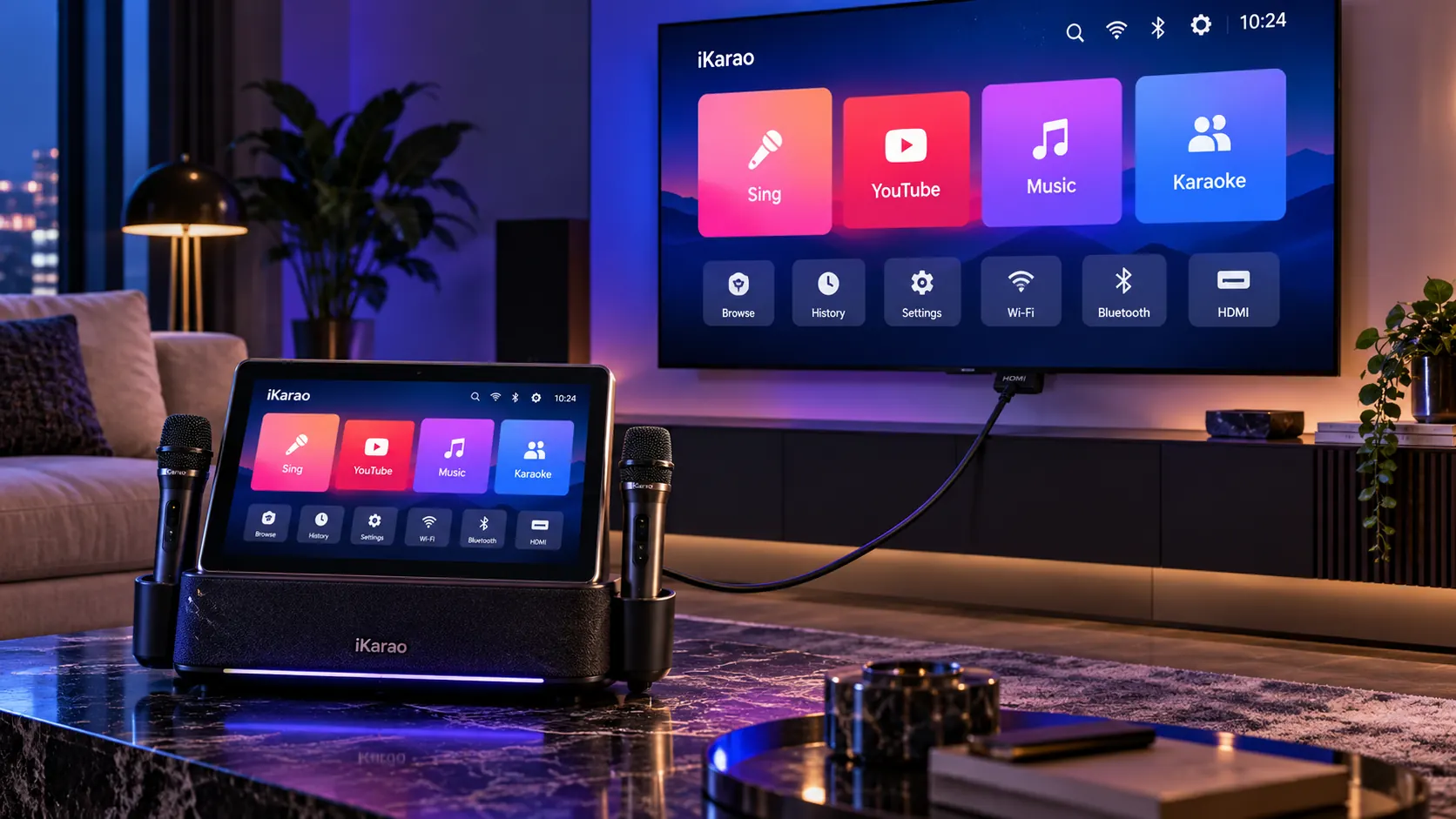
For an HDMI-equipped iKarao:
- Check that your iKarao has an HDMI port.
- Connect one end of an HDMI cable to the iKarao.
- Connect the other end to an HDMI input on your TV.
- Note which TV port you used, such as HDMI 1 or HDMI 2.
- Turn on the iKarao and television.
- Open the TV’s Input or Source menu.
- Select the HDMI number that matches the connected port.
- Wait for the iKarao visual output to appear.
- If the TV says No Signal, check the cable, source selection, ports, and model compatibility.
iKarao’s current FAQ describes the same basic process: connect the machine to the television with HDMI and then choose the corresponding HDMI input on the TV.
Which iKarao Models Can Connect to a TV?
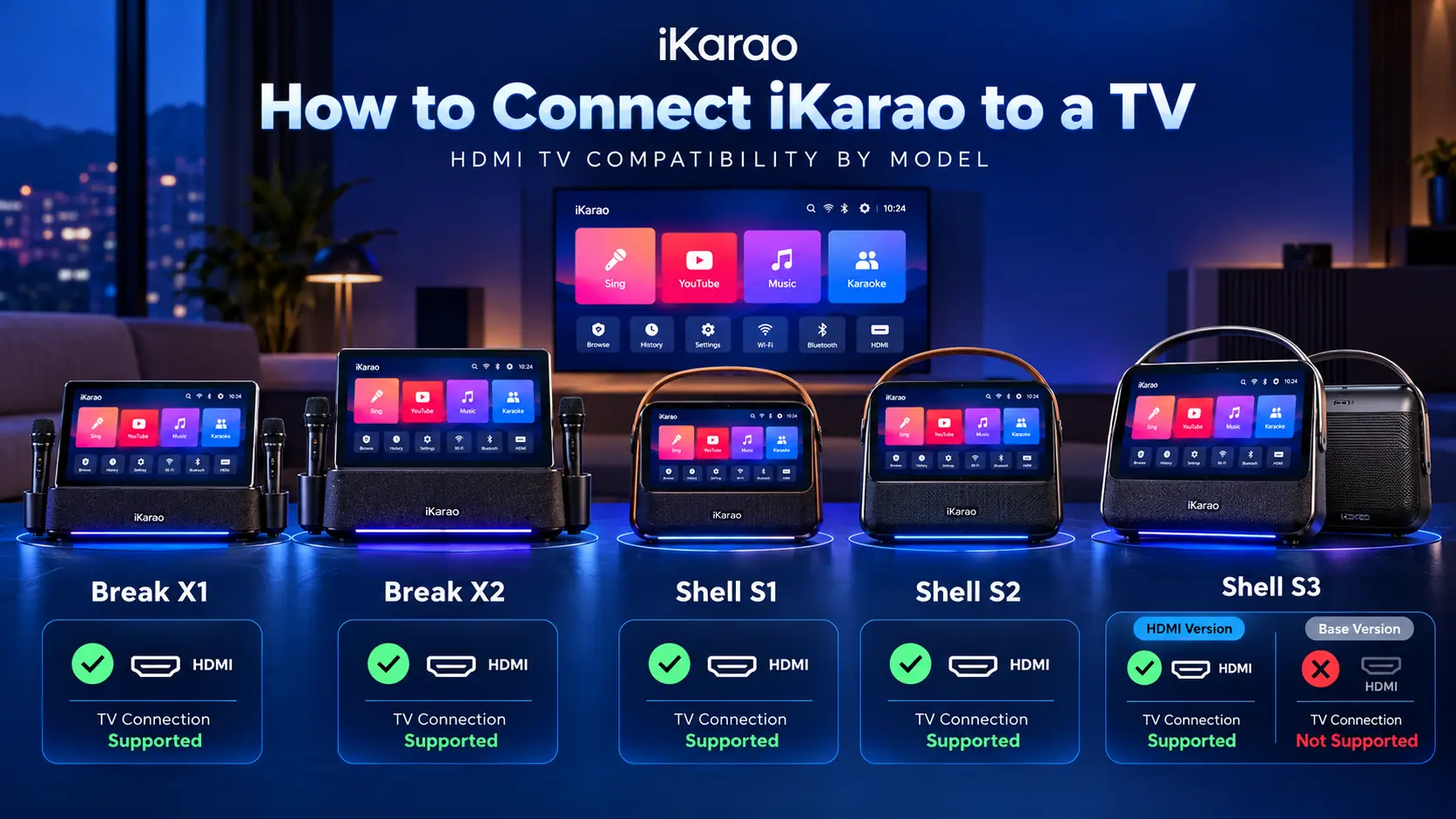
HDMI support is not identical across the current lineup.
| iKarao model | TV connection | Current HDMI status |
|---|---|---|
| Break X1 | Yes | HDMI — Video Only |
| Break X2 | Yes | HDMI — Video Only |
| Shell S1 | Yes | HDMI — Video Only |
| Shell S2 | Yes | HDMI — Video Only |
| Shell S3 | Depends on version | HDMI optional |
Break X1, Break X2, Shell S1, and Shell S2 currently list HDMI directly in their connectivity specifications, with the product pages identifying it as Video Only.
For Shell S3, iKarao’s current comparison guide says all models except the base Shell S3 have HDMI output and that an optional HDMI version of the S3 is available.
That is why checking the physical ports on your exact unit matters.
What You Need
For the standard setup, you need:
- an HDMI-equipped iKarao;
- a TV with an available HDMI input;
- a compatible HDMI cable;
- your TV remote or source-selection controls.
You do not need a special “karaoke HDMI cable.”
You also do not need HDMI ARC or eARC simply to display the iKarao interface on the television.
Step 1: Find the HDMI Port on Your iKarao
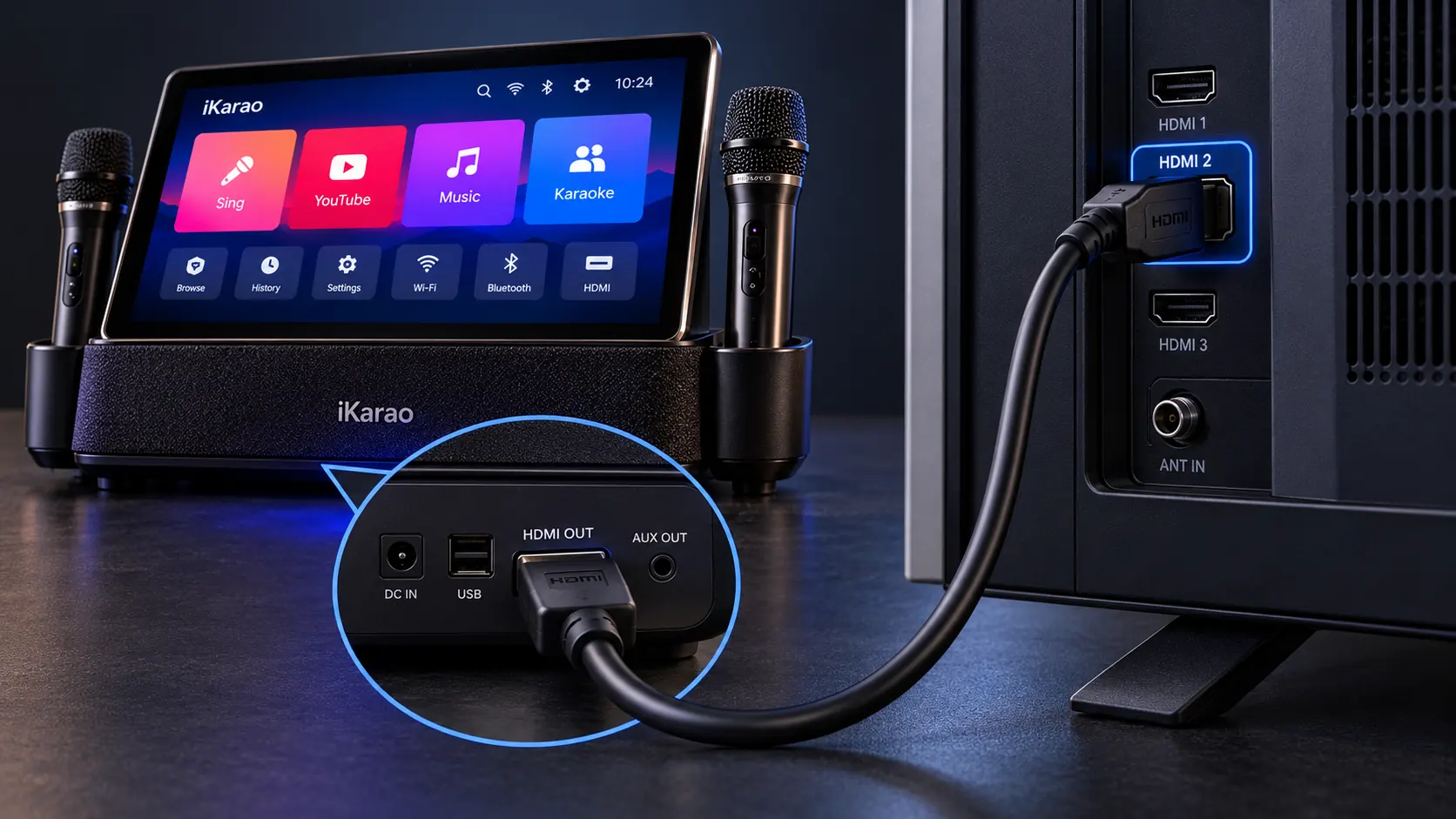
Start by locating the HDMI port on the machine.
On the Break X1, Break X2, Shell S1, and Shell S2, HDMI is included among the documented physical connections.
For Shell S3, inspect the machine itself before buying a cable.
If there is no HDMI port, you may have the base S3 version rather than an HDMI-equipped variant.
Do not assume that every unit carrying the Shell S3 name has identical ports.
Step 2: Connect the HDMI Cable
Connect one end of the cable to the HDMI port on the iKarao.
Then connect the other end to an available HDMI input on your TV.
The connection path is:
iKarao HDMI output → TV HDMI input
It is useful to note the number beside the TV port.
For example:
iKarao → HDMI 2
You will need that number when selecting the TV source.
Step 3: Select the Correct Input on the TV
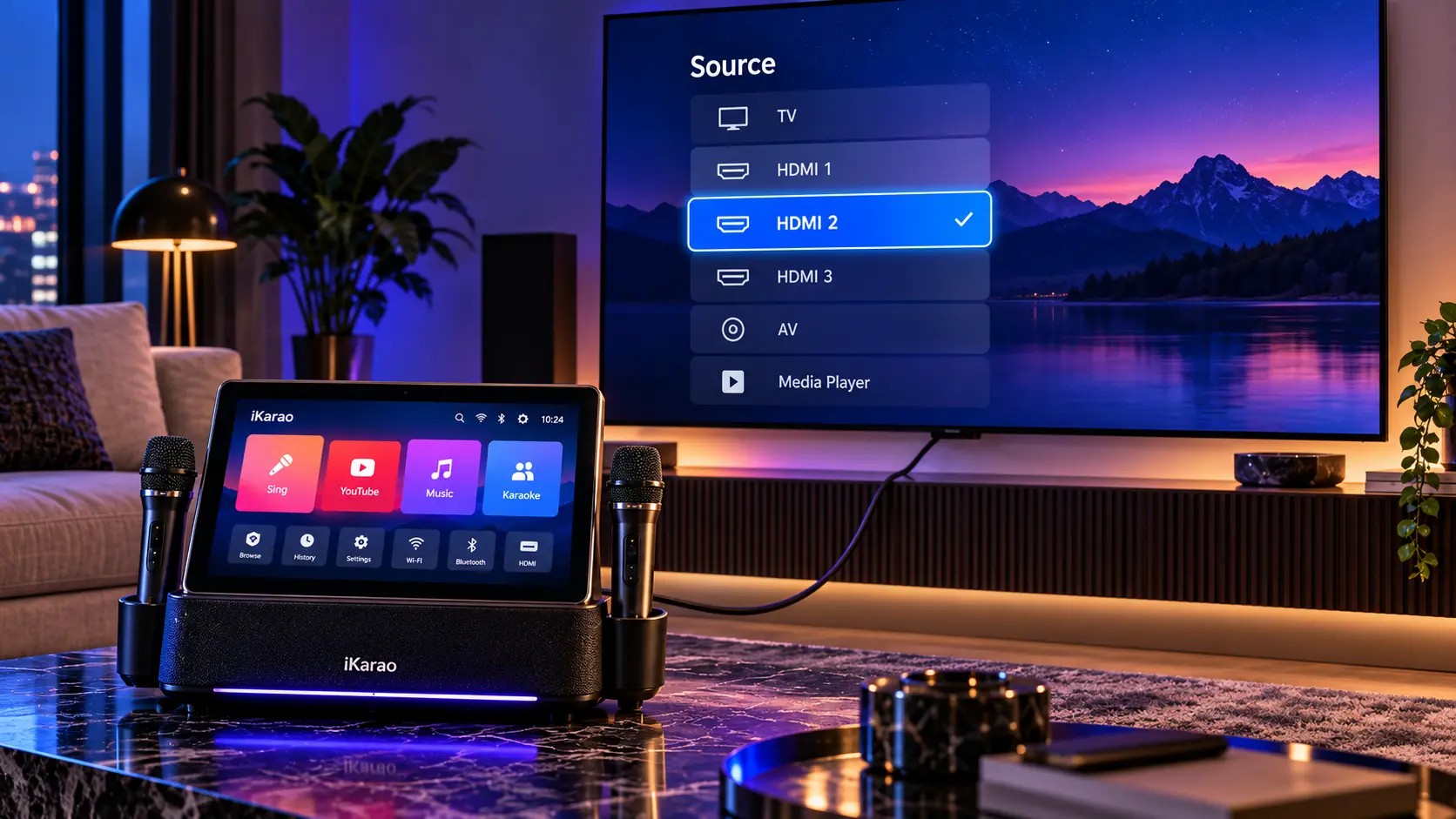
Use the television remote and look for a button labeled something like:
- Input
- Source
- HDMI
- External Input
If you plugged the cable into HDMI 2, select HDMI 2 from the TV menu.
This sounds obvious, but selecting the wrong input is one of the easiest ways to end up with a blank screen or “No Signal” message.
iKarao’s own support instructions likewise tell users to select the corresponding HDMI source after connecting the cable.
Step 4: Check the TV Picture
Once the correct HDMI source is selected, the television should display supported visual output from the iKarao.
iKarao promotes HDMI specifically for showing the system on a larger television or projector, including larger-screen lyrics and visual content.
You may see:
- the iKarao interface;
- lyrics;
- supported video;
- app visuals.
Exact behavior can depend on the model, app, and software version, so avoid assuming every screen will always mirror in exactly the same way.
Does iKarao HDMI Send Sound to the TV?
This is the most important detail to understand.
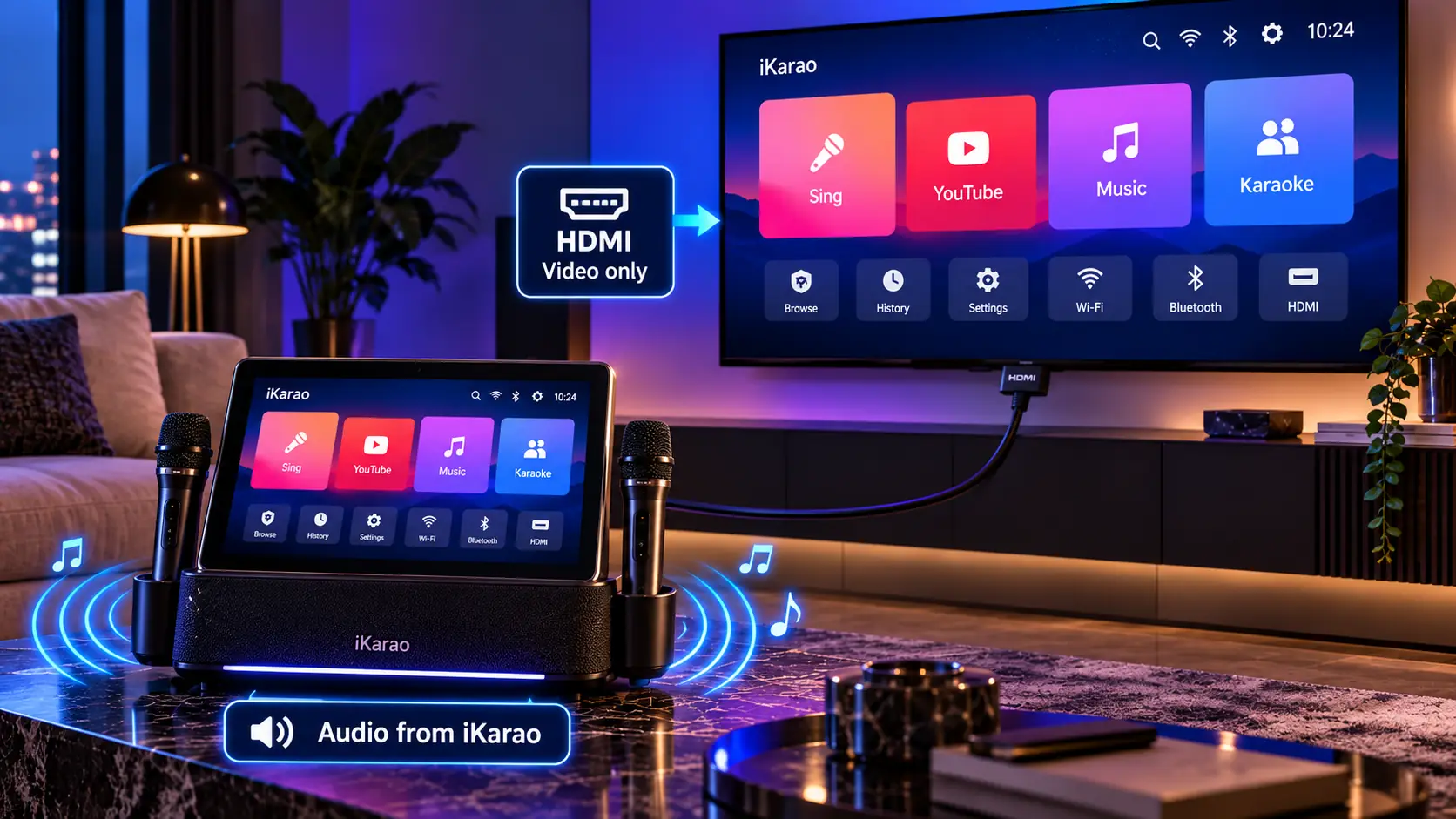
Standard HDMI technology is capable of carrying both video and audio, but iKarao currently describes the HDMI implementation on Break X1, Break X2, Shell S1, and Shell S2 as “Video Only.”
That is a model-specific implementation detail, not a general limitation of HDMI itself.
So if:
- the picture appears correctly on your television;
- but the iKarao’s audio remains on the karaoke machine;
that may be normal behavior rather than a fault.
Do not immediately replace the HDMI cable just because the television does not play the iKarao audio.
Where Does the Audio Come From?
For the simplest TV setup, think of the system this way:
TV = larger visual display
iKarao = speaker and microphone system
That setup is consistent with the current “Video Only” HDMI specification used on X1, X2, S1, and S2.
If you want to route iKarao audio to another speaker system, treat that as a separate connection task.
iKarao’s current support-video directory even separates connecting to a TV or projector from outputting iKarao sound to an external speaker, which reinforces that these are different setup paths.
How to Connect Break X1 to a TV
The current Break X1 page lists:
HDMI (Video Only).
To connect it:
- Locate the X1 HDMI port.
- Connect the HDMI cable.
- Plug the other end into the TV.
- Note the TV input number.
- Select that HDMI source.
- Confirm the iKarao display appears on the television.
If the image appears but the television does not reproduce the machine’s audio, remember that iKarao currently specifies this HDMI connection as video-only.
How to Connect Break X2 to a TV
Break X2 also lists:
HDMI (Video Only).
The basic setup is:
Break X2 HDMI → TV HDMI input → select matching TV source
If you connected the X2 to HDMI 1 on the television, choose HDMI 1.
If nothing appears, confirm the source before changing other settings.
How to Connect Shell S1 to a TV
Shell S1 currently lists:
HDMI (Video Only)
alongside Bluetooth, USB, AUX, and Wi-Fi.
Connect the S1 HDMI output to your TV and select the corresponding source.
Do not confuse AUX with HDMI.
AUX is an audio connection. It is not a substitute for HDMI when your goal is to put the iKarao visual interface on the television.
How to Connect Shell S2 to a TV
Shell S2 also currently lists:
HDMI (Video Only).
Use the same setup:
- Connect the S2 to the TV with HDMI.
- Select the matching television input.
- Confirm the picture.
- Let the iKarao handle its normal speaker output unless you deliberately configure another supported audio path.
Can Shell S3 Connect to a TV?
It depends on which Shell S3 you own.
This is an area where iKarao’s own documentation currently needs to be read carefully.
The generic FAQ says the Shell S3 does not connect to a TV because it lacks HDMI.
However, iKarao’s newer comparison guide says:
- the base Shell S3 does not include HDMI;
- an optional HDMI version is available.
The most reliable practical check is therefore the physical unit.
If Your Shell S3 Has an HDMI Port
You have an HDMI-capable version and can use the documented TV connection method.
If Your Shell S3 Has No HDMI Port
You likely have the base version, so the normal HDMI TV connection is unavailable.
Do not buy adapters expecting them to create video output from a port that was not designed to provide it.
Can You Connect iKarao to a Smart TV?
Yes.
A smart TV does not need any special app merely for the basic HDMI setup.
If:
- the iKarao has HDMI output;
- and the TV has HDMI input;
you can use the standard wired connection.
The television’s own Wi-Fi or smart features are separate from the HDMI source connection.
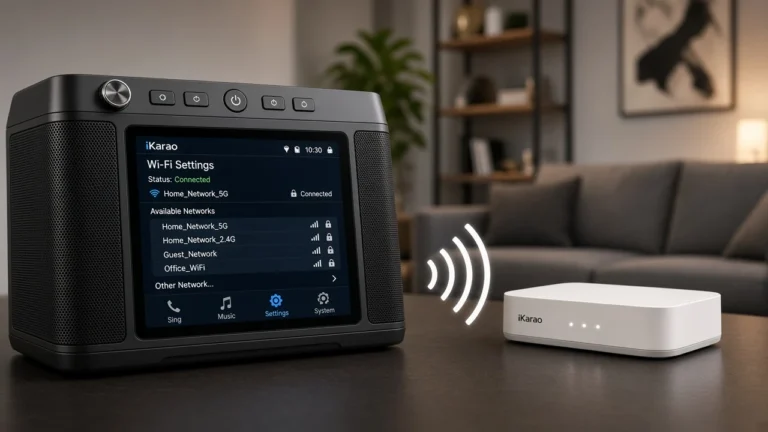
Do You Need Wi-Fi to Connect iKarao to a TV?
Not for the physical HDMI connection.
HDMI and Wi-Fi serve different purposes.
HDMI handles the documented wired visual connection between the iKarao and television.
Wi-Fi gives the iKarao access to online services and apps.
This distinction becomes important if the TV successfully shows the iKarao interface but an online app refuses to load.
In that situation, the HDMI connection may be working perfectly while the iKarao has a separate internet problem.
Use your iKarao Wi-Fi troubleshooting guide for that issue.
Can You Connect iKarao to a TV With Bluetooth?
Bluetooth should not be treated as a replacement for HDMI screen output.
iKarao lists Bluetooth and HDMI as separate connection features on its current products.
Bluetooth can be useful for compatible audio connections, but the documented method for displaying iKarao visuals on a TV is HDMI.
Do not assume that pairing the iKarao with a television through Bluetooth will mirror its touchscreen.
Can You Connect iKarao to a TV Wirelessly?
Current iKarao documentation clearly supports HDMI as the standard TV-display method.
It does not establish one universal AirPlay, Chromecast, Miracast, or other wireless screen-mirroring procedure across the complete iKarao lineup.
So the safer rule is:
Use HDMI for the documented TV connection unless the support information for your exact model and software version explicitly provides another method.
Do not assume that built-in Wi-Fi automatically means wireless TV mirroring is supported.
Can You Connect iKarao to a Projector?
Yes, if the iKarao model has HDMI output and the projector has a compatible HDMI input.
iKarao’s current comparison guide specifically describes HDMI as a way to connect the machine to a TV or projector, and its support-video directory includes a dedicated TV/projector connection guide.
Use:
iKarao HDMI output → projector HDMI input
Then select the matching source on the projector.
The same video-only caveat applies where the model documentation specifies it.
iKarao Connected to TV but Says “No Signal”
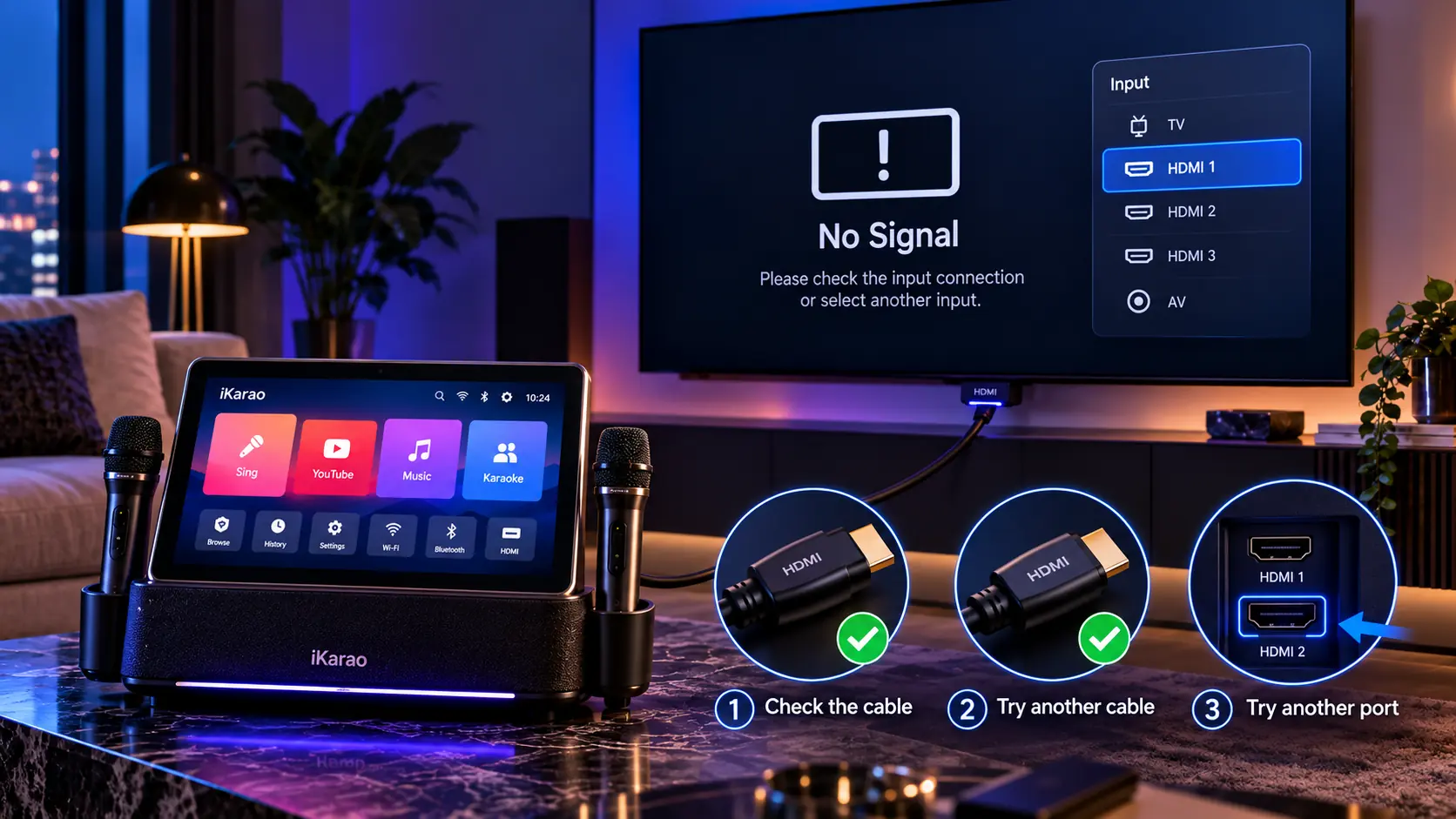
If your television displays No Signal, troubleshoot from the simplest possibility first.
1. Confirm the iKarao Is On
Make sure the machine has booted normally.
2. Confirm Your Model Actually Has HDMI
This is especially important with Shell S3.
Look for a physical HDMI port rather than relying only on the model family name.
3. Check the TV Input
If the cable is in HDMI 2, the television should normally be set to HDMI 2.
4. Reseat the Cable
Disconnect and reconnect both ends securely.
5. Try Another HDMI Cable
If you have another known-working cable, use it to eliminate cable failure as a possibility.
6. Try Another TV HDMI Input
Move the cable from one television HDMI input to another and then select the new source.
7. Restart Both Devices
A normal restart can clear temporary connection problems.
Do not jump immediately to a factory reset.
Picture Appears on iKarao but Not on the TV
If the built-in screen works normally but the television remains blank, focus on the HDMI path.
Check:
- correct TV input;
- HDMI cable seating;
- different HDMI cable;
- different TV HDMI port;
- whether the exact iKarao version has HDMI output.
If you have a Shell S3 with no physical HDMI port, there is no standard HDMI output to troubleshoot.
If the iKarao has HDMI and several known-working cables and TV inputs still produce no picture, move to model-specific support.
TV Has Picture but No Sound
This is not necessarily a failure.
If you own:
- Break X1;
- Break X2;
- Shell S1;
- Shell S2;
their current product pages explicitly describe HDMI as Video Only.
So a setup where:
TV shows visuals + iKarao produces audio
can be normal.
Before troubleshooting “missing TV sound,” check your exact model specification.
Which HDMI Port Should You Use on the TV?
Use an available HDMI input on the television.
For example:
- HDMI 1
- HDMI 2
- HDMI 3
Then select that same source from the TV menu.
You may also see one TV HDMI port labeled ARC or eARC.
Do not assume an ARC/eARC label means the port cannot accept normal video input.
ARC and eARC add audio-return capabilities to compatible HDMI connections; they do not automatically make that HDMI port unusable for a source device.
If your television has manufacturer-specific restrictions, follow its own manual.
Do You Need HDMI ARC or eARC?
No special ARC or eARC feature is required simply to display iKarao video.
For the basic setup:
iKarao = source
TV = display
ARC/eARC is primarily relevant to audio-return workflows between a television and compatible audio equipment.
It should not be presented as a way to override iKarao’s manufacturer-listed Video Only HDMI behavior.
What HDMI Cable Do You Need?
For the normal iKarao TV setup, use a compatible standard HDMI cable.
iKarao’s own FAQ simply tells users to connect the machine to the television with HDMI.
You do not need to buy:
- a special karaoke-branded HDMI cable;
- HDMI 2.1 solely because it is newer;
- an unusually expensive cable for ordinary setup.
If an existing cable works reliably and displays the expected image, there is no reason to replace it merely for branding.
Can You Display KaraFun on the TV?
The purpose of iKarao HDMI output is to provide a larger display for supported visual content, and iKarao specifically promotes TV/projector output for larger lyrics.
If KaraFun is running normally on the iKarao, supported visual output can be used with the larger display.
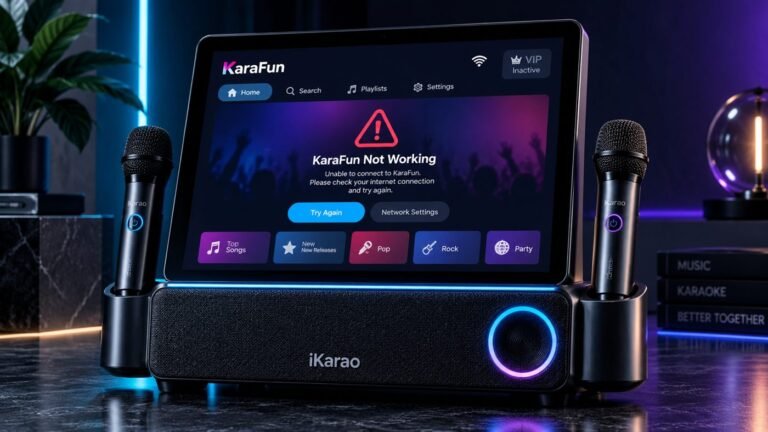
If the TV connection works but KaraFun itself does not, troubleshoot the app rather than the HDMI cable.
Use your dedicated iKarao KaraFun not working guide for activation, account, version, or app problems.
Can You Display YouTube on the TV?
Current iKarao machines include or support built-in online apps, including YouTube on current comparison documentation.
HDMI is intended to provide larger-screen visual output, but exact app behavior can depend on the model and software version.
If the television shows the iKarao interface but YouTube will not load, that points toward an app or internet issue rather than an HDMI connection failure.
Does the iKarao Touchscreen Stay On When Connected to a TV?
Do not assume all models behave identically.
Internal-screen behavior can depend on:
- model;
- software;
- current app;
- output mode.
The official manuals center provides dedicated documentation for Break X1, Break X2, Shell S1, and Shell S2 and recommends using the manual for the exact model.
If you specifically need a particular dual-screen arrangement, check the current manual rather than assuming the internal screen will always mirror, turn off, or behave as a second display.
iKarao-to-TV Troubleshooting Decision Tree
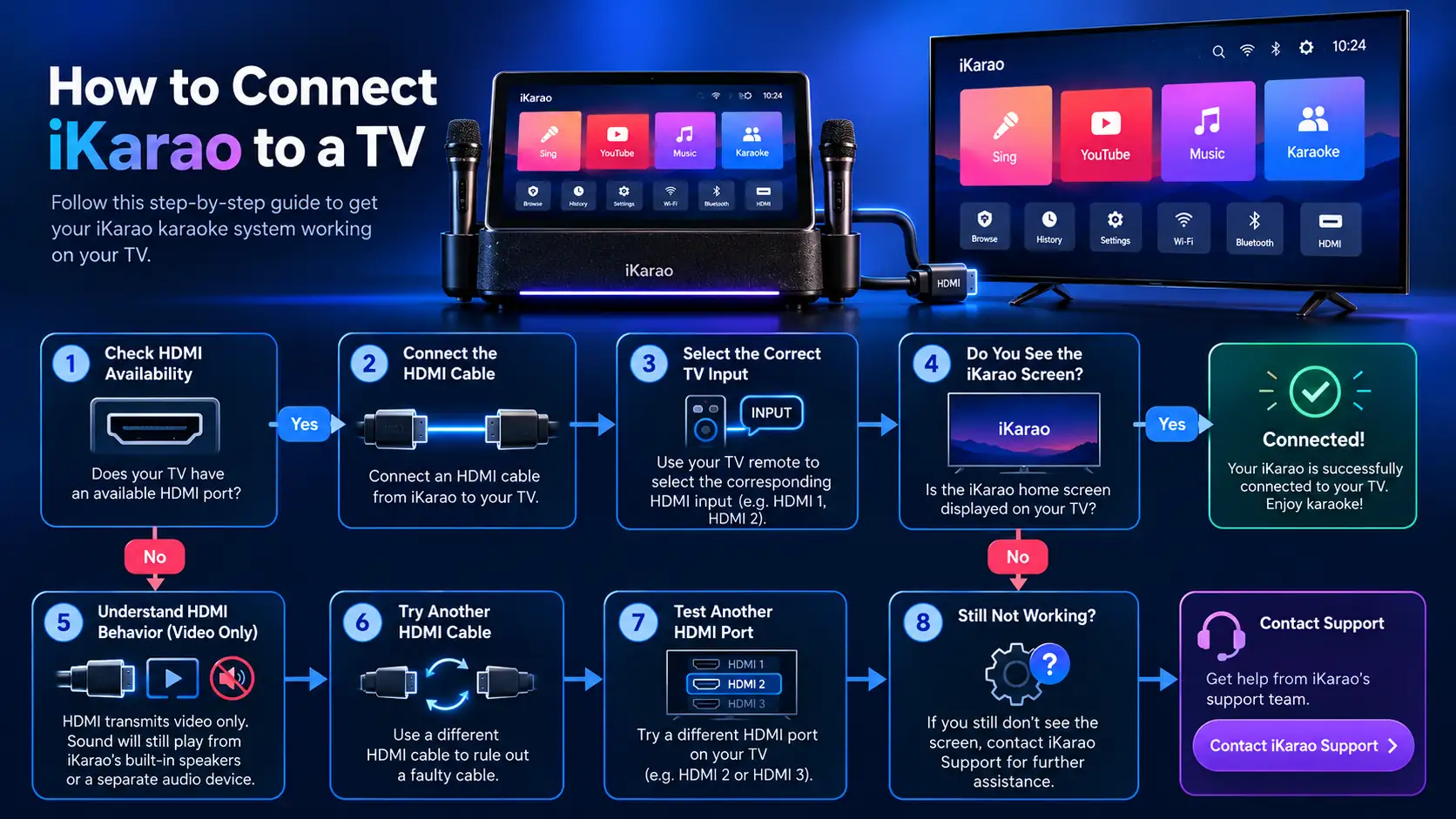
Want to connect iKarao to TV │ ├── Does the unit have HDMI? │ │ │ ├── NO │ │ → Standard HDMI TV connection unavailable │ │ │ └── YES │ ├── Connect iKarao HDMI output │ to TV HDMI input │ ├── Select matching HDMI source │ ├── Is picture visible? │ │ │ ├── YES │ │ → Connection works │ │ → Check model's audio behavior │ │ │ └── NO │ → Check TV source │ → Reseat HDMI cable │ → Try another cable │ → Try another TV HDMI port │ ├── Picture but no TV sound? │ │ │ └── Check model specification │ → X1, X2, S1 and S2 │ currently list Video Only HDMI │ └── Still no picture? → Check exact model manual → Contact iKarao supportQuick TV Connection Troubleshooting Table
| Problem | Check first | Next step |
|---|---|---|
| TV says No Signal | Correct TV HDMI source | Cable and port |
| iKarao works but TV is blank | HDMI connection | Try another cable/input |
| TV has picture but no audio | Model HDMI specification | Use supported audio path |
| Shell S3 has no HDMI port | Exact S3 version | HDMI connection unavailable on base version |
| App will not load | iKarao internet connection | Wi-Fi troubleshooting |
| KaraFun fails but TV picture works | KaraFun app/account | KaraFun troubleshooting |
| Bluetooth works but TV has no picture | Wrong connection method | Use HDMI |
| Projector shows no image | Projector input source | Cable/port |
What Not to Do
Avoid these common mistakes:
- assuming every Shell S3 has HDMI;
- assuming no Shell S3 can have HDMI;
- expecting TV sound through X1/X2/S1/S2 HDMI without checking their video-only specification;
- treating AUX as a video connection;
- assuming Bluetooth mirrors the touchscreen;
- assuming Wi-Fi automatically enables wireless screen mirroring;
- buying adapters before checking whether the unit actually has video output;
- factory-resetting the iKarao because the TV is on the wrong HDMI input;
- assuming an ARC/eARC port cannot receive normal video;
- installing unofficial software to solve an HDMI problem.
Start with the physical connection.
Check current price for the iKarao smart karaoke machine.
When to Contact iKarao Support
Contact iKarao when:
- your model has an HDMI output but multiple televisions or projectors cannot detect it;
- several known-working HDMI cables fail;
- multiple TV inputs fail;
- the HDMI connector appears damaged;
- your Shell S3 version is unclear;
- the machine behaves differently from its current manual;
- a model-specific output setting is not documented.
iKarao currently provides product-specific support, manuals, and an official video guide that includes connecting iKarao to a TV or projector.
Frequently Asked Questions
Connect the iKarao HDMI output to an HDMI input on your television, then select the matching HDMI source using the TV remote. This is the connection process currently described by iKarao.
Yes, if your iKarao model or version has HDMI output and the smart TV has an HDMI input. The television does not need a special iKarao app for the basic wired connection.
Do not assume so. Current Break X1, Break X2, Shell S1, and Shell S2 product pages specifically label HDMI as Video Only.
On X1, X2, S1, and S2, that behavior may be consistent with the current video-only HDMI specification. Check the specification for your exact model before assuming the cable has failed.
Yes. Break X1 currently lists HDMI output, identified as Video Only.
Yes. Break X2 also currently lists HDMI (Video Only).
Yes. Shell S1 currently lists HDMI (Video Only).
Yes. Shell S2 currently lists HDMI (Video Only).
It depends on the version. iKarao’s current comparison guide says the base Shell S3 lacks HDMI but an optional HDMI version is available.
Bluetooth should not be treated as the documented method for displaying the iKarao screen on a television. Use HDMI on compatible models.
Current cross-model documentation establishes HDMI as the standard TV connection. Do not assume AirPlay, Chromecast, or Miracast support unless the documentation for your exact model says so.
Yes, on HDMI-equipped models. iKarao specifically documents TV and projector use with HDMI.
Check that your iKarao has HDMI output, confirm the TV is set to the correct HDMI source, reseat the cable, try another cable, and test a different TV HDMI input.
No. HDMI itself does not require Wi-Fi. Wi-Fi is only necessary when the content or app you are using requires internet access.
Final Setup Checklist
To connect an iKarao to a TV:
check model → confirm HDMI → connect cable → select matching TV source → verify picture → check model-specific audio behavior
For Break X1, Break X2, Shell S1, and Shell S2, current product pages identify the HDMI connection as Video Only.
For Shell S3, inspect the exact version because HDMI is optional rather than universal.
If the TV displays the iKarao interface but does not reproduce its audio, do not automatically treat that as a fault.
If the TV shows No Signal, check the input selection, cable, port, and model compatibility before making deeper system changes.
And keep the four connection systems separate:
HDMI = TV visual output
Wi-Fi = internet
Bluetooth = compatible wireless device connection
wireless microphones = microphone link
Understanding those differences makes iKarao-to-TV setup much easier to diagnose.